 Unreal Engine 5 Plugin · v1.0
Tool Dock
Embed external application windows — and in-process Qt/PySide widgets — into dockable Unreal Editor panels.
View on FABWhat You Need
Tool Dock reparents native window handles, which is a Win32 operation. There is no configuration, no account, and no external dependency — install it and it works.
Install from FAB
Tool Dock is available on FAB, Epic's official plugin marketplace.
Getting Started
There are two ways to use Tool Dock, and they're independent — you can use either, or both at once.
The Shared Panel— multi-tab
One dock holding several windows as tabs, much like browser tabs. This is a normal saved-layout editor tab, so the editor remembers where you put it.
Dedicated Instances— one app per tab
Sometimes you don't want a shared dock — you want one specific app pinned to its own tab, with its own icon and title.
Releasing a Window
“Releasing” restores a docked window to a normal, independent desktop window at its original size and position. It does not close or terminate the application. A window is released when you:
Key Features
Scripting API
Exposed to Python as unreal.ToolDockLibrary, and to Blueprint under the Tool Dock node category. All calls must be made from the game thread; calling from a background thread logs an error and returns False.
- process_id — PID of an external application, e.g. from subprocess.Popen(...).pid
- window_handle — Native window handle (HWND on Windows), e.g. int(widget.winId())
Which “attach” function should I use?
This is the one thing worth getting right up front. The two attach functions are not interchangeable.
attach_process_to_new_tool_dock. It searches that process's top-level windows and picks the best main-window candidate, preferring the largest non-minimized one.attach_window_to_new_tool_dock instead. PID search deliberately skips in-process windows, and winId() is a window handle, not a process id — passing it to the PID-based function will never match anything.Attach an external app by PID
import subprocess
import unreal

process = subprocess.Popen(["C:/Program Files/Blender Foundation/blender.exe"])

# Give the app a moment to create its main window before searching for it.
unreal.ToolDockLibrary.attach_process_to_new_tool_dock(process.pid)
Attach an in-process PySide widget by handle
import unreal
from PySide6 import QtWidgets

widget = QtWidgets.QWidget()
widget.setWindowTitle("My Pipeline Tool")
widget.show()

# winId() is a window handle, not a PID - use the handle-based function.
unreal.ToolDockLibrary.attach_window_to_new_tool_dock(int(widget.winId()))
Open the shared panel
import unreal

if not unreal.ToolDockLibrary.is_tool_dock_open():
unreal.ToolDockLibrary.open_tool_dock()Settings
Edit → Project Settings → Plugins → Tool Dock
| Setting | Default | Description |
|---|---|---|
| Minimized Filter | Show Minimized | Whether minimized windows appear in the capture list. Set to Hide Minimized to declutter if you keep a lot of windows minimized. |
| Include In Process Windows | On | Whether top-level windows owned by the editor's own process — Qt/PySide widgets launched from Python — are offered for capture at all. Slate's own windows are always excluded regardless. |
| Ignored Window Classes | 5 defaults | Win32 class names never offered for capture. Supports a trailing wildcard, so Chrome_WidgetWin_* ignores every Chrome window. |
| Enable Drag And Drop Capture | On | Whether dragging a window onto the panel by its title bar captures it. Turning this off leaves the + button as the only way to capture. |
SplashScreenClass), tooltips (tooltips_class32), common dialogs (#32770), and IME windows (IME, MSCTFIME UI). Add to this list if some other transient window keeps showing up.EditorPerProjectUserSettings, so changing them doesn't affect your teammates.Tutorials
Walkthroughs covering every feature. Click a tutorial to jump to it.
Installation
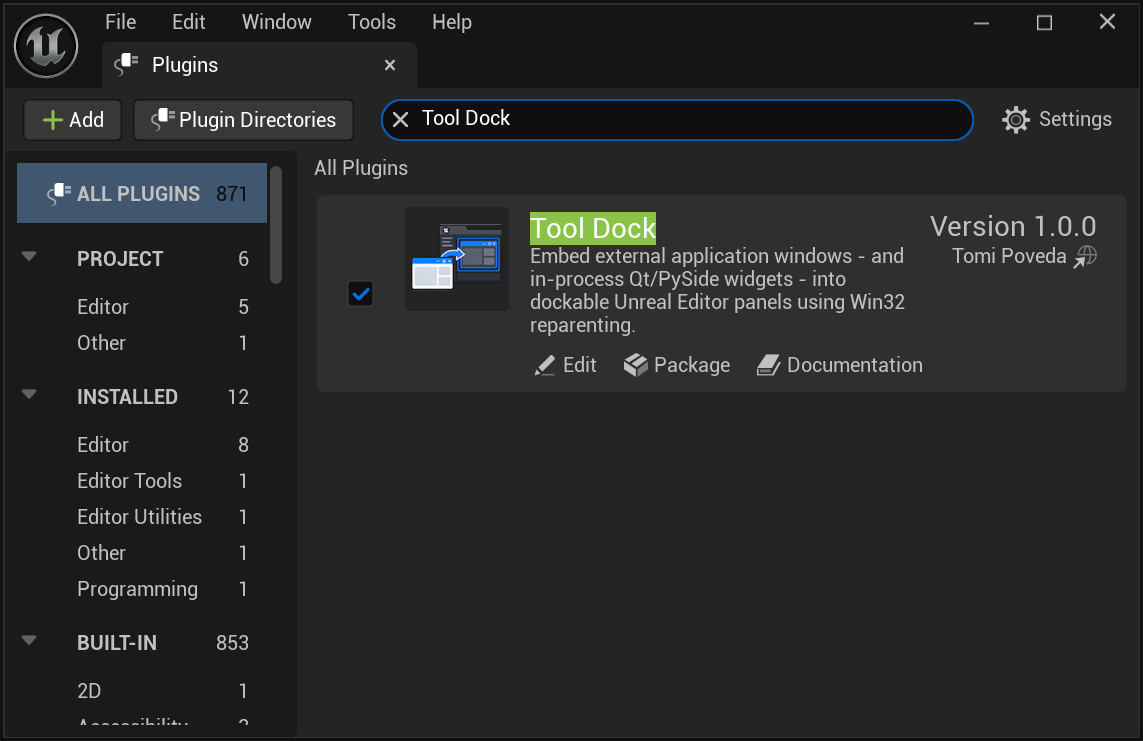 Tool Dock enabled in the Plugins browser
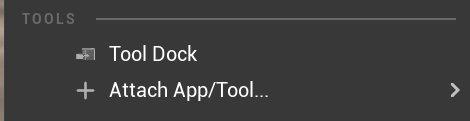 The two entries under Window → Tools
Your First Capture
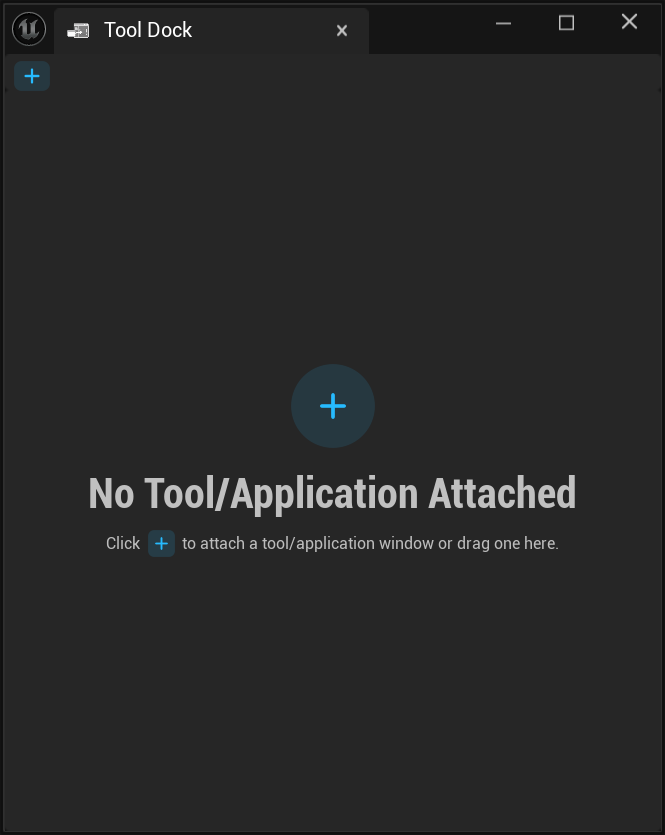 The empty Tool Dock panel
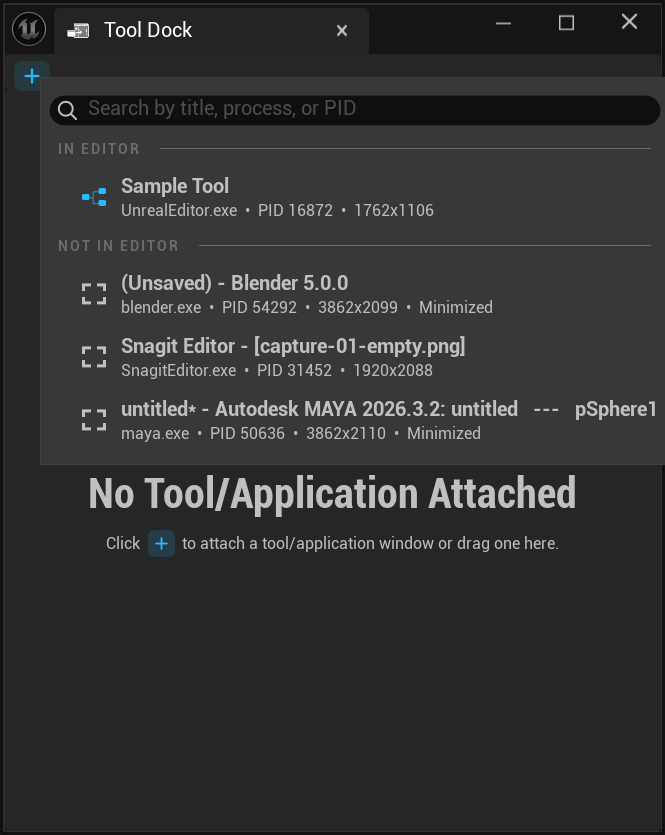 The capture menu, split by category
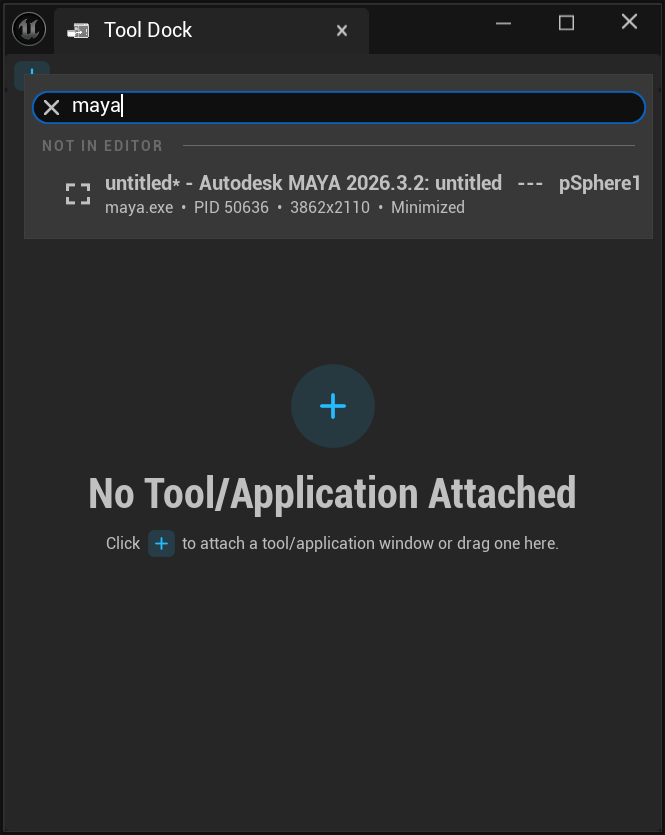 Filtering the capture list by process
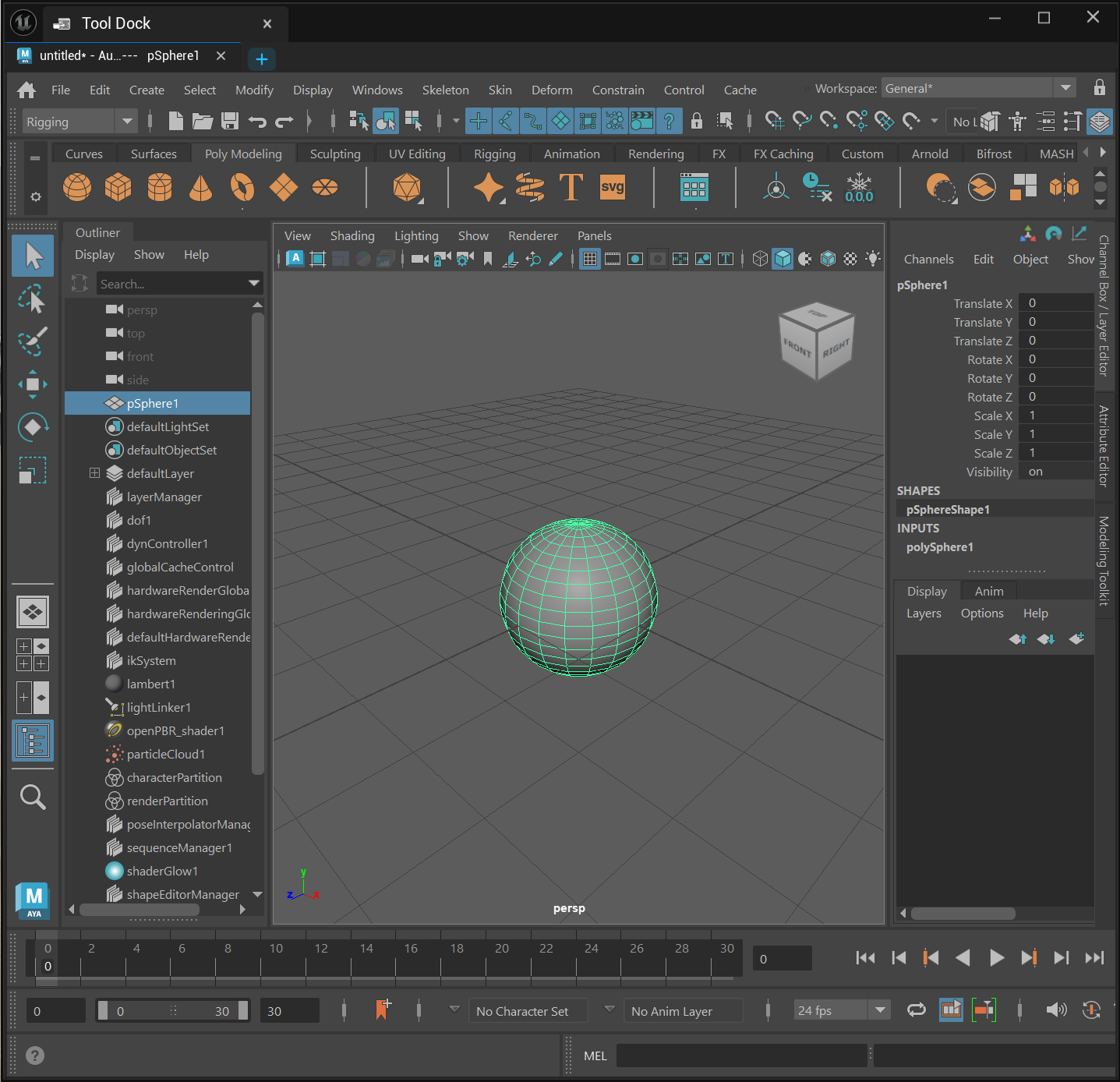 An external app docked in the panel
Working with Tabs
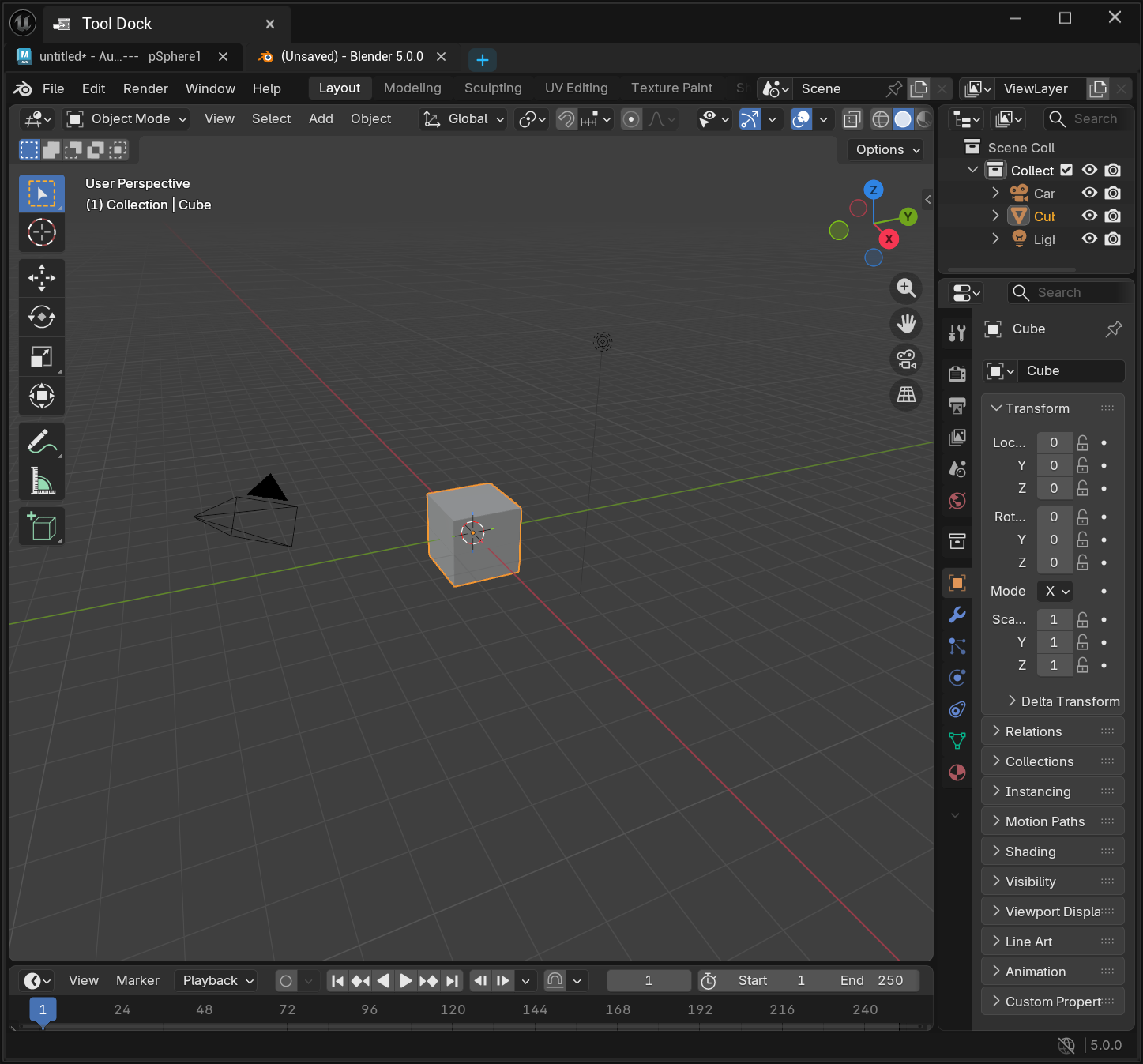 Two windows docked as separate tabs
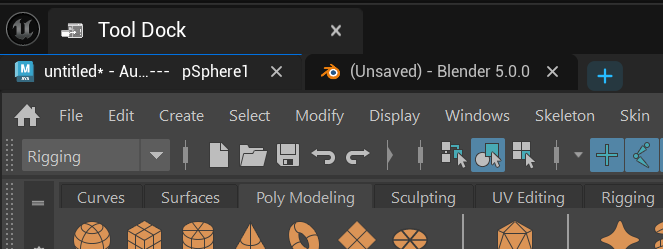 Switching to the second tab
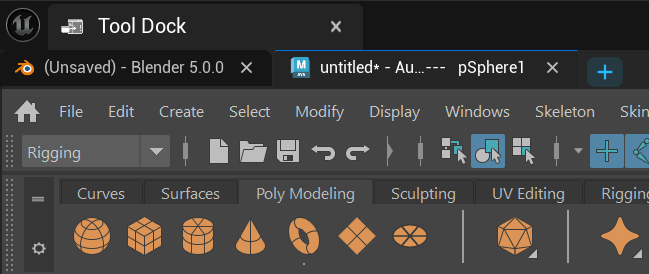 Dragging a tab onto its neighbour
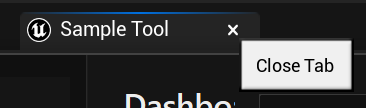
 The per-tab close button
 The release hint shown while dragging out
Drag and Drop Capture
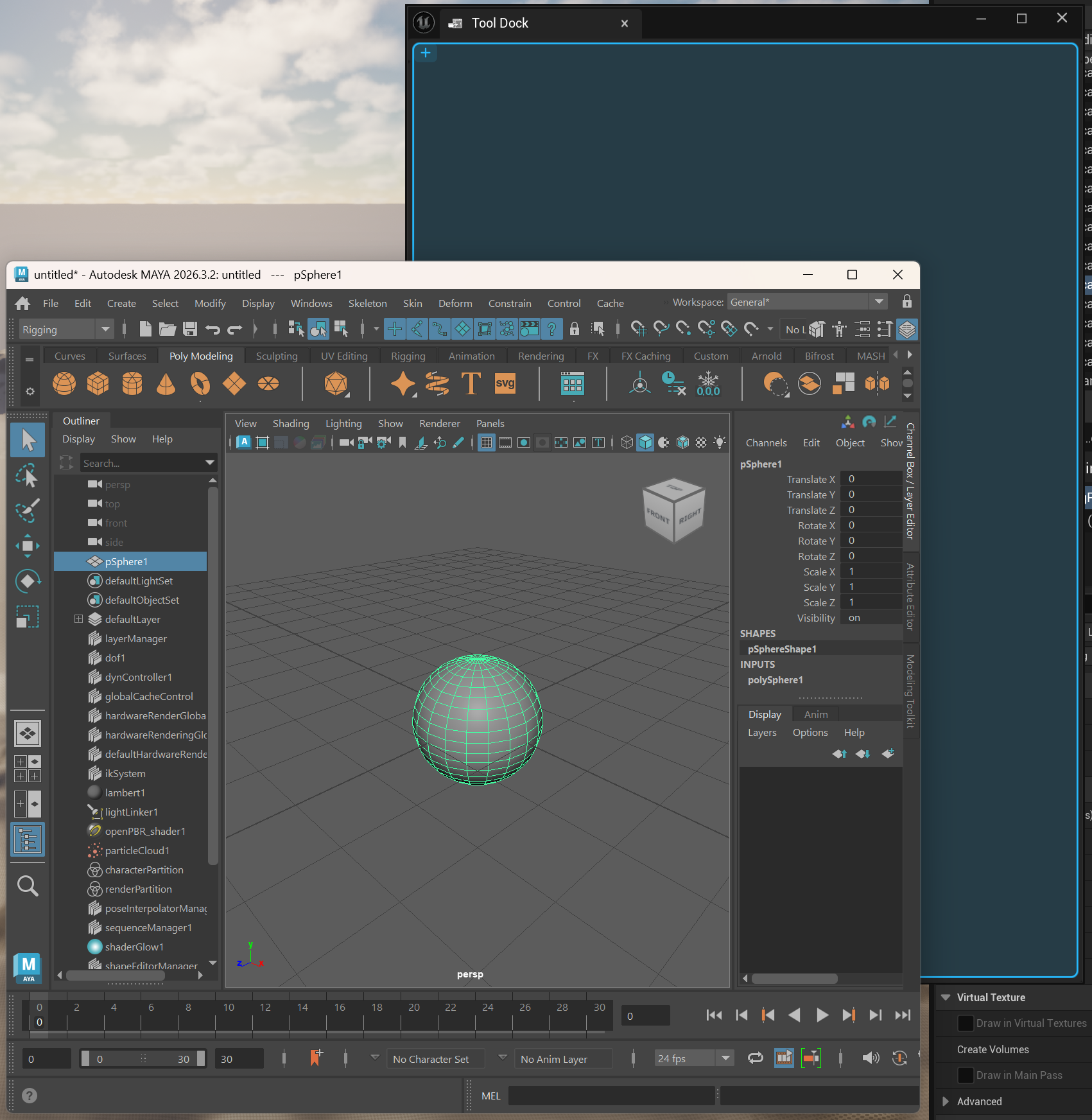 The drop overlay while hovering the panel
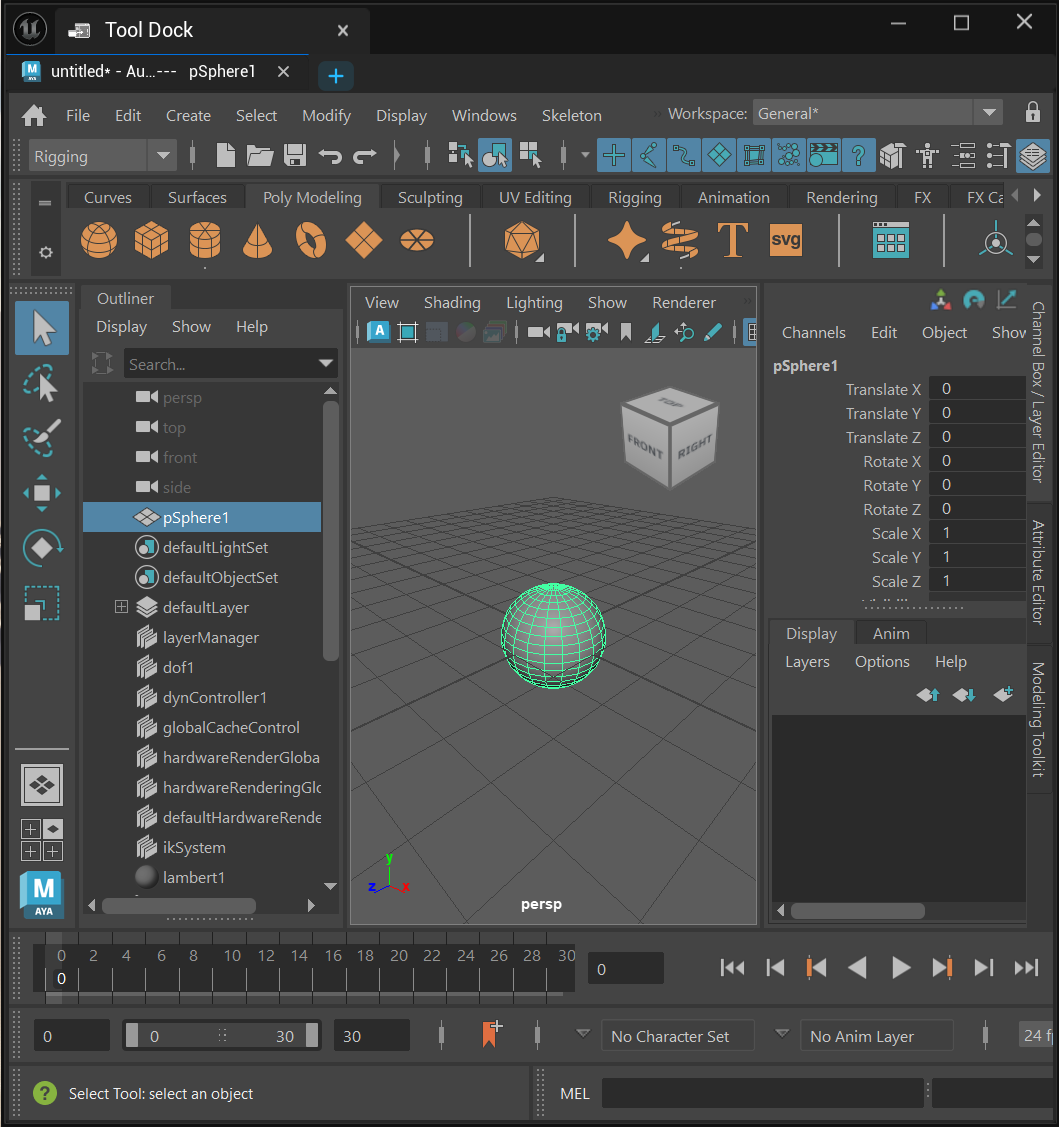 The window docked after release
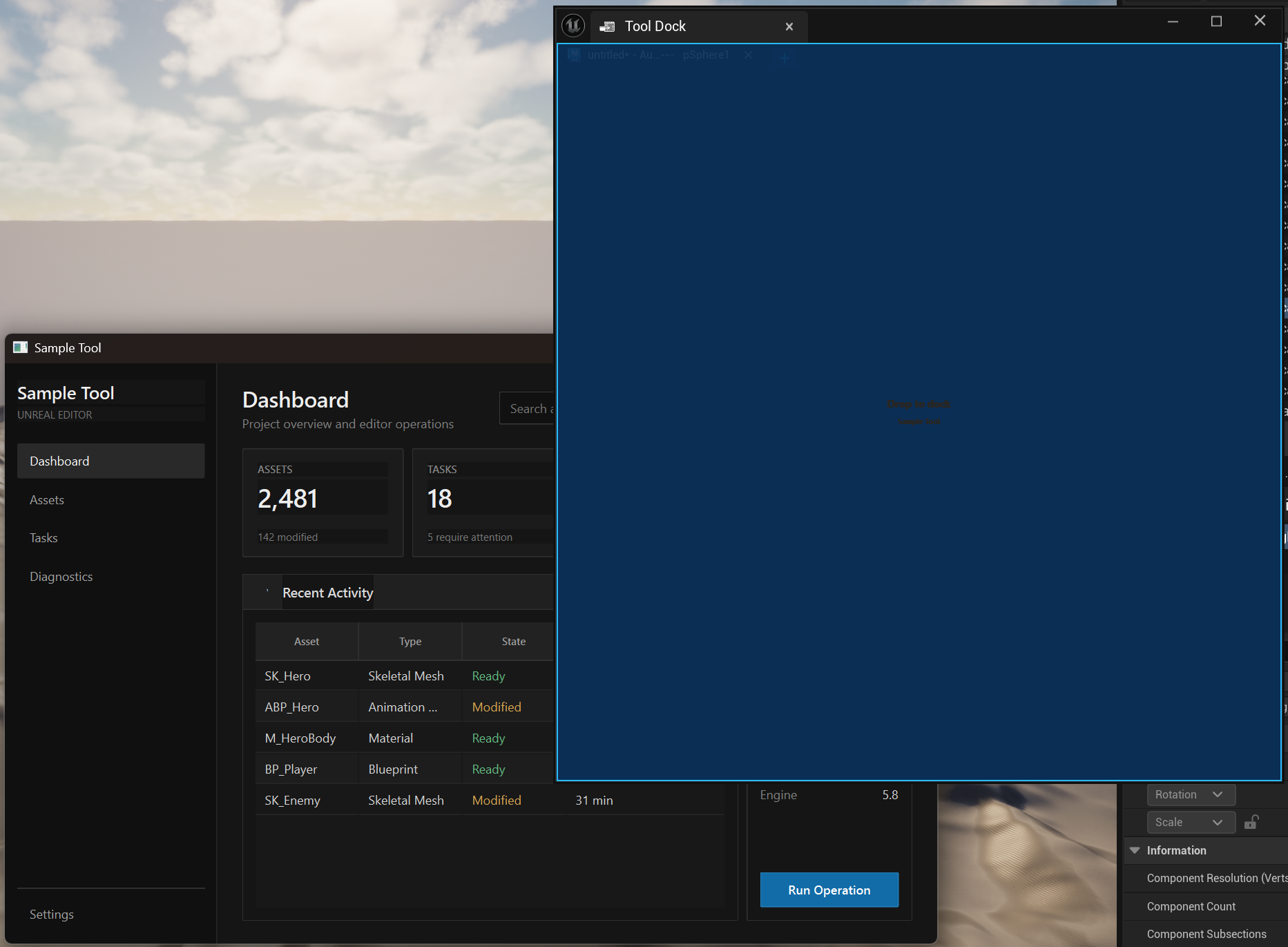 The native drop hint used for in-process drags
Dedicated Instances
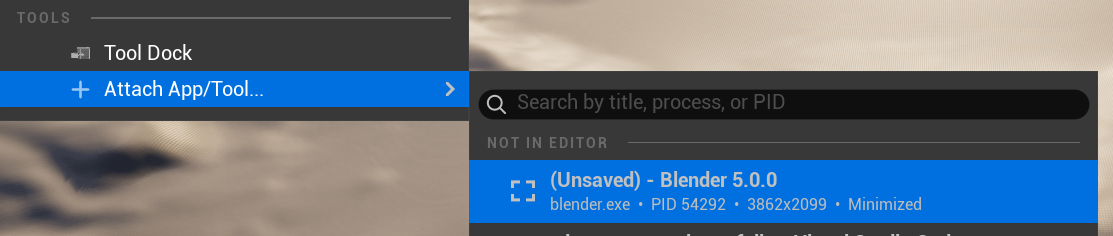 The Attach Tool… submenu
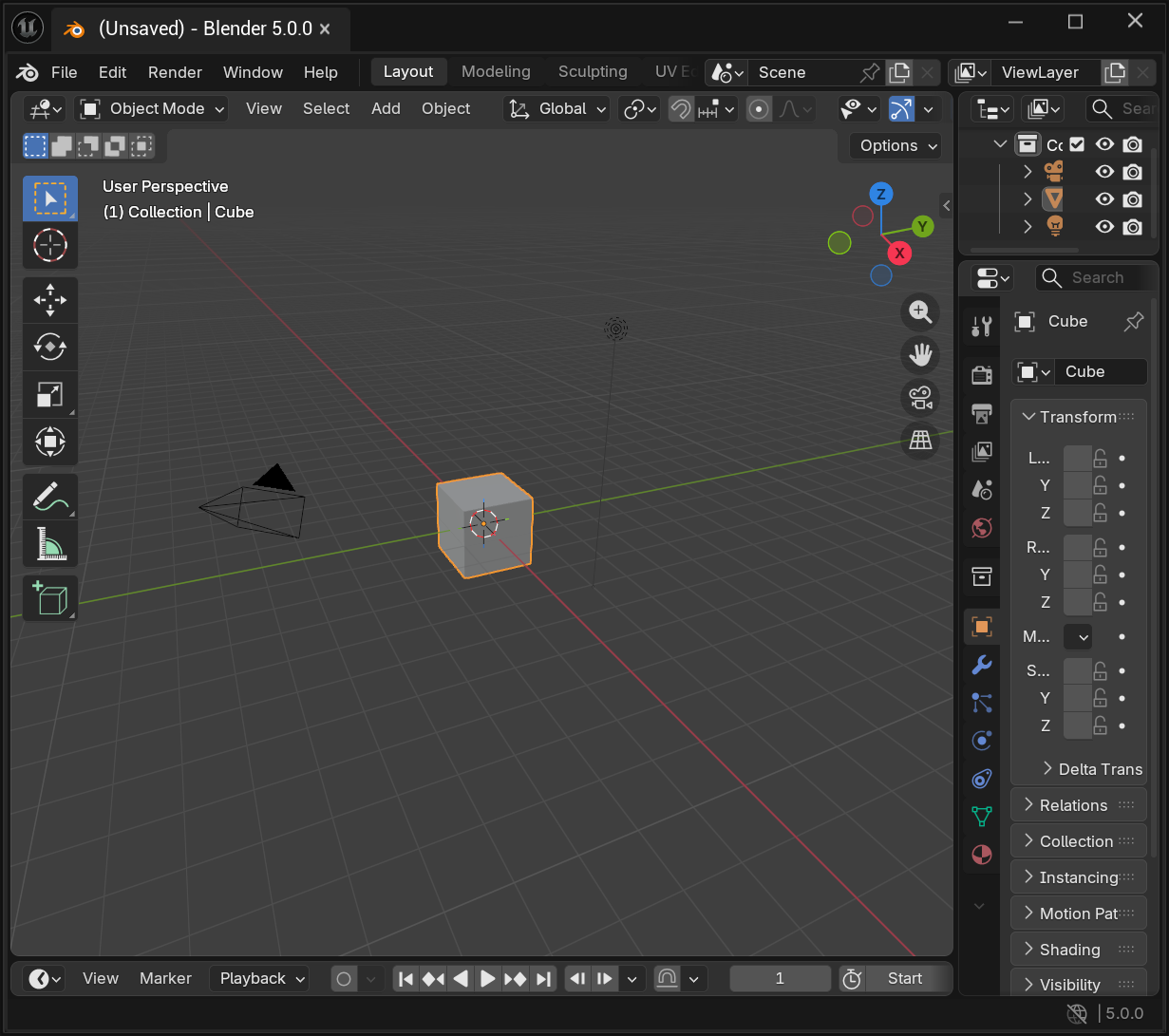 A dedicated instance in its own tab
.exe and its label from the window title, so it reads like a first-class tool tab. The tab using the app's own icon
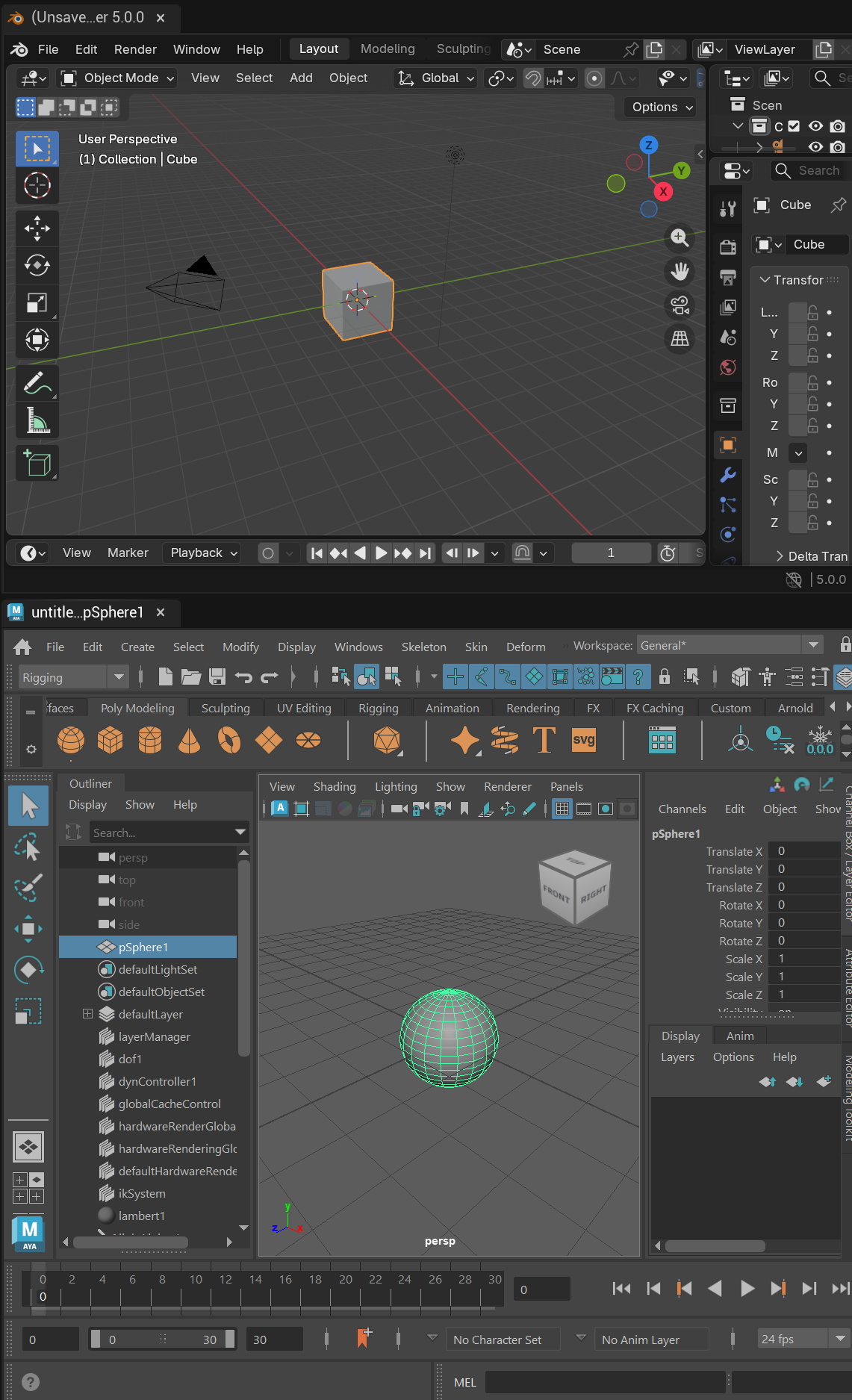 Two dedicated instances docked side by side
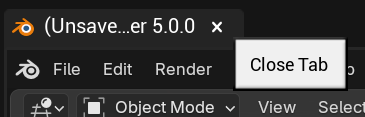 The tab closing after its app exits
Docking a PySide Tool
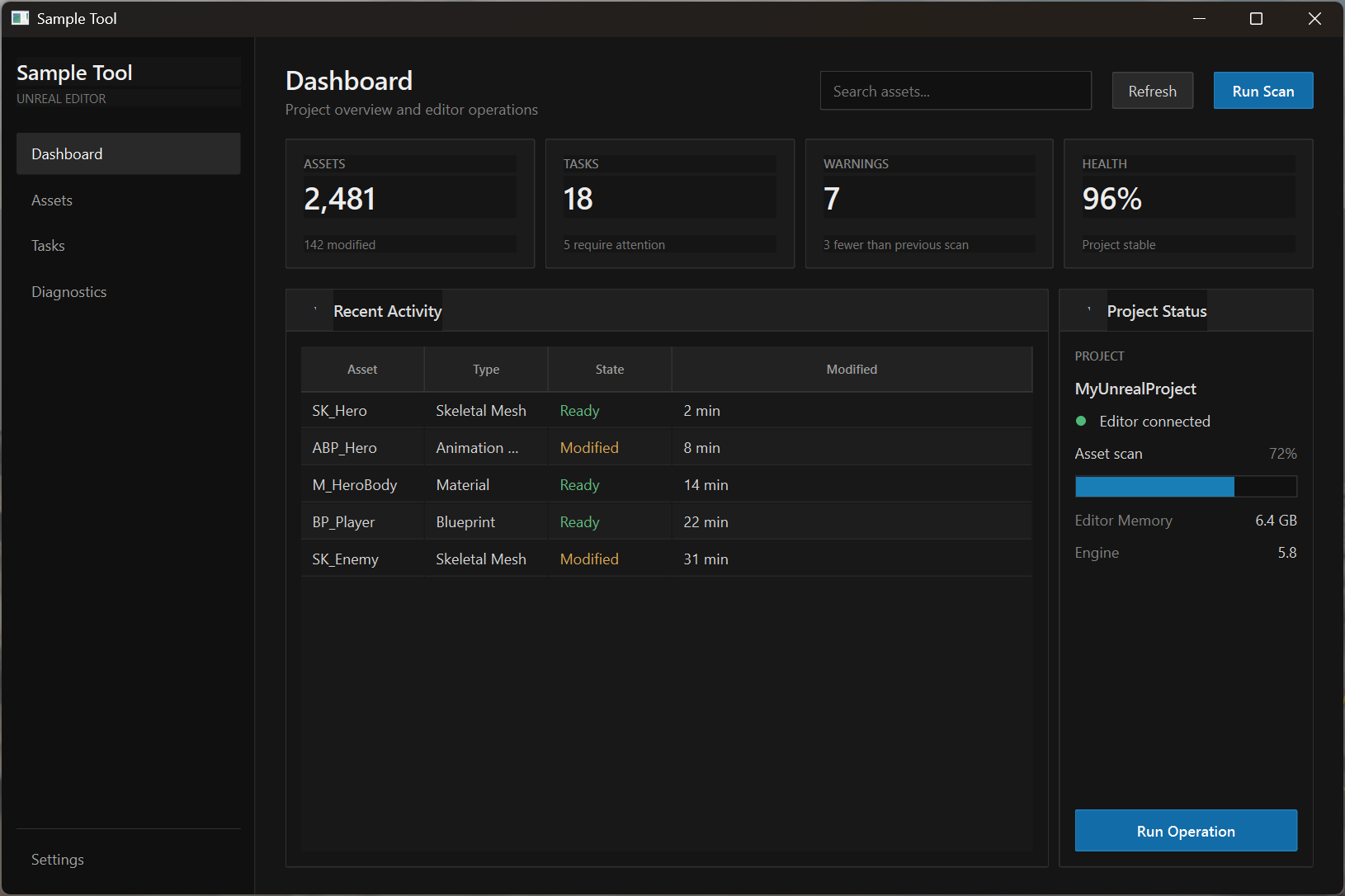 A PySide widget floating over the editor
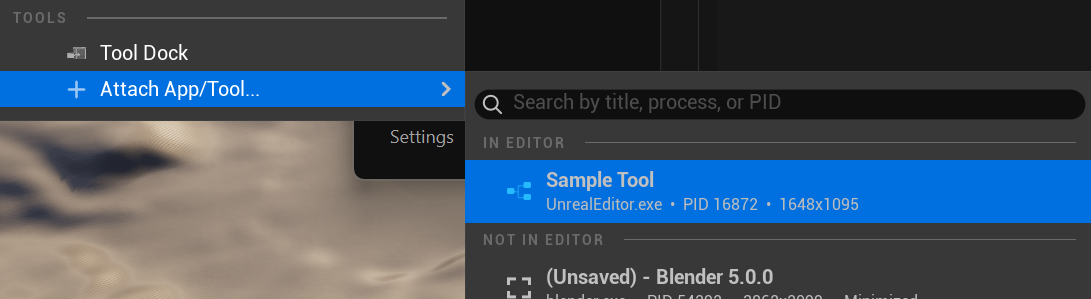 The widget listed under In Editor
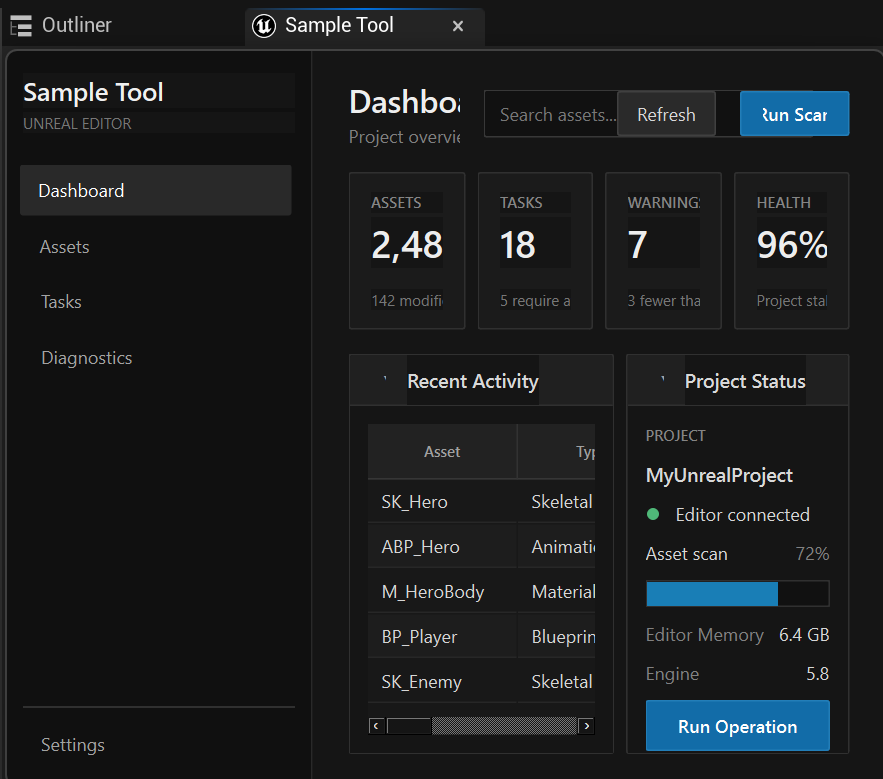 The PySide tool docked in the editor
 The widget floating again after release
Tuning the Capture List
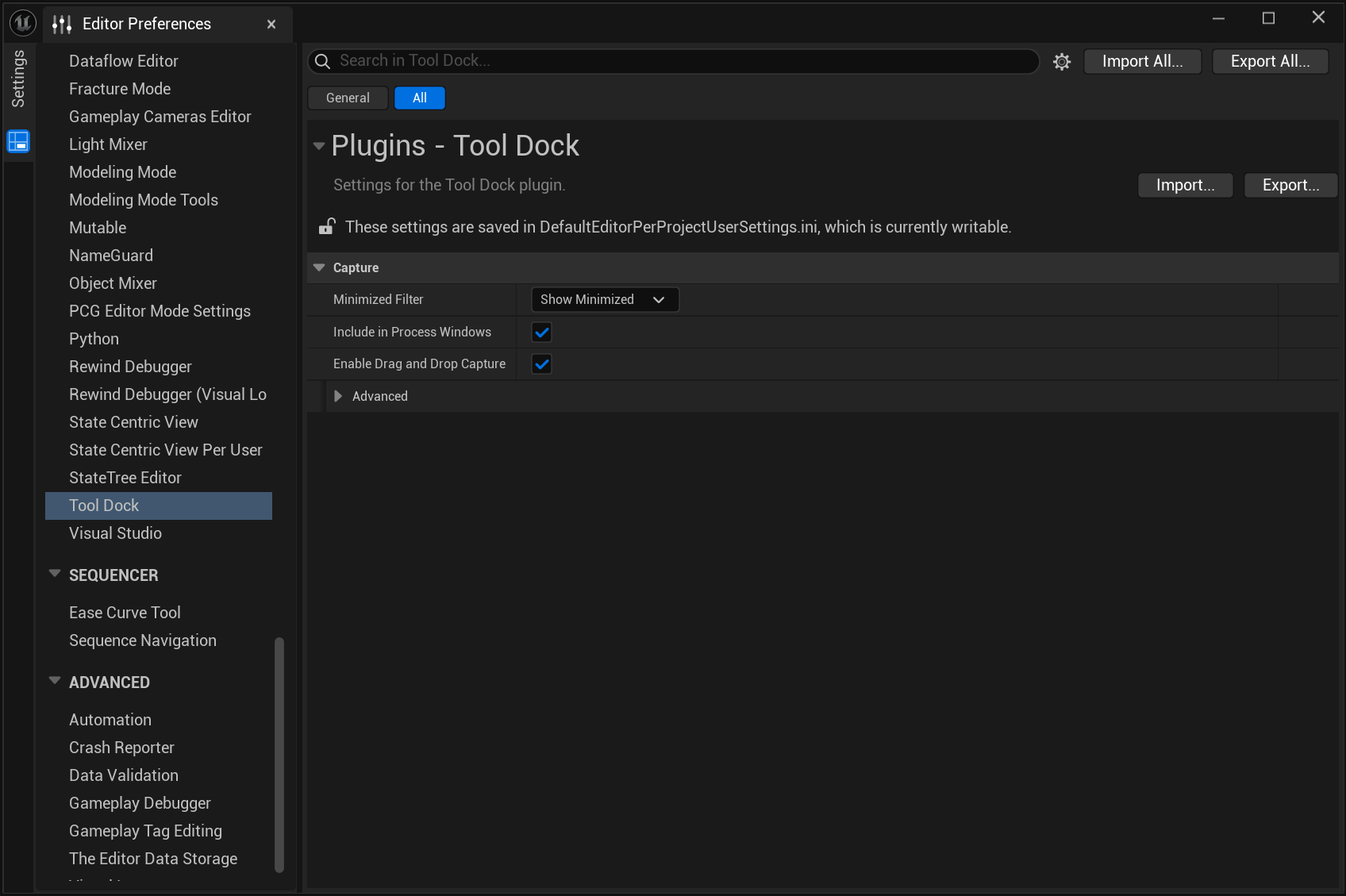 The Tool Dock settings panel
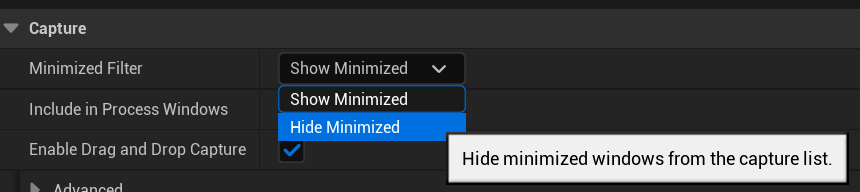 The minimized filter in action
* — to keep a noisy application out of the list for good.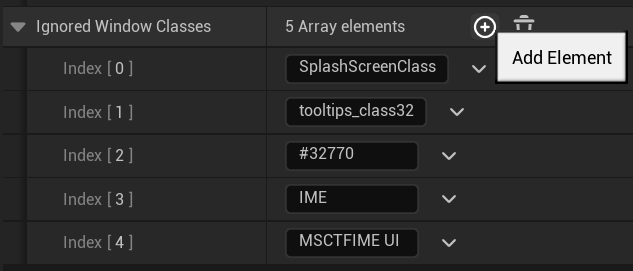 Adding a wildcard ignore pattern
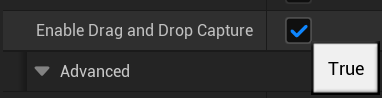 Drag-and-drop capture disabled
Changelog
All notable changes to Tool Dock, organized by version.
First public release. Embed external application windows and in-process Qt/PySide widgets into dockable Unreal Editor panels.
- newShared multi-tab Tool Dock panel, with tab switching, drag-to-reorder, and per-tab release.
- newDedicated single-app instances via Window → Tools → Attach Tool…, each in its own editor tab titled and iconed after the target application.
- newDrag-and-drop capture: drag any window onto the panel by its title bar, detected cross-process through a WinEvent hook with no DLL injection.
- newPython and Blueprint scripting API exposed as unreal.ToolDockLibrary, with both PID-based and handle-based attach entry points.
- newSearchable capture menu matching on title, process name, PID, and window class, with per-category sections that hide when fully filtered.
- newPer-user settings for minimized-window filtering, in-process window inclusion, wildcard class ignore patterns, and drag-to-dock toggling.
- newAnti-cheat detection: window styles are read back after being written, and a blocked capture rolls itself back and notifies the user.
FAQ
A window I expect to see isn't in the capture list.
Work through these in order:
- Check Settings — it may be filtered out by Include In Process Windows, Minimized Filter, or an Ignored Window Classes pattern.
- Check it isn't already docked somewhere. Already-docked windows are excluded from every picker, across the shared panel and all dedicated instances.
- Windows on another virtual desktop are cloaked by the OS and deliberately skipped.
- Windows with no title text, and tool-styled windows with no owner, are treated as transient popups and filtered.
Capture fails with an anti-cheat warning.
Some applications are protected by kernel-level anti-cheat drivers that silently swallow the SetWindowLongPtr style change Tool Dock relies on. The plugin reads the styles back after writing them, notices they didn't take, rolls its change back and tells you — rather than leaving you with a half-captured window. This is a hard block that no external tool can work around.
attach_process_to_new_tool_dock returns False for my PySide widget.
Use attach_window_to_new_tool_dockwith the widget's winId() instead. PID search intentionally skips in-process windows — and winId() is a window handle, not a process id, so passing it to the PID-based function will never match anything.
Does docking close or restart the application?
No. Tool Dock never launches, closes, or terminates anything. It only changes an existing window's style and owner. Release puts the original style, extended style, owner, and screen position back, and you get a normal desktop window again — the application never knows it moved.
Do docked windows survive an editor restart?
Partially. The shared Tool Dock panel is a normal saved-layout tab, so its presence and position persist. The windows that were docked insideit do not — the target application isn't necessarily still running when the editor comes back up.
Dedicated instances don't persist either: their tabs are registered on the fly when you open them and are not part of the saved-layout system. Reopen them after a restart, or script it from a startup Python file.
A released window ended up somewhere strange on screen.
Tool Dock clamps the restored rectangle to the current virtual desktop bounds, so a window can never be stranded fully off-screen. An unusual multi-monitor change while a window was docked can still produce a surprising result. Drag it back into view; its position isn't tracked once released.
Why does dragging a docked app by its own title bar undock it?
That's deliberate. Apps that draw a custom title bar start a real OS move loop (WM_NCLBUTTONDOWN with HTCAPTION). Tool Dock detects the resulting drift and evicts the window from the dock in place, restoring its frame so the drag you already started continues naturally on a free-floating window. Resizing does not undock — that gesture is told apart and cancelled so the panel re-snaps.
Is macOS or Linux supported?
No. Tool Dock is Windows-only and its module is restricted to the Win64 platform. The embedding relies on Win32 window ownership semantics that have no direct equivalent elsewhere.
Tool Dock is not affiliated with, endorsed by, or sponsored by any of the applications it can embed. It does not launch, modify, close, or terminate third-party software — it only changes an existing window's style and owner, and restores both on release.
Applications protected by kernel-level anti-cheat drivers cannot be captured. This is a hard block enforced by those drivers and no external tool can work around it; Tool Dock detects the refusal, rolls its own change back, and reports it rather than failing silently.
The developer will endeavor to keep this plugin up to date, however operating system behaviour and third-party applications may change at any time without notice and continued compatibility cannot be guaranteed.