 Unreal Engine 5 Plugin · v1.1
Music Remote Player
Control any media player directly from the Unreal Editor — without ever leaving your project.
View on FABWhat You Need
The plugin works in two modes with different requirements.
Local Mode— zero setup
Remote Mode— Spotify Web API
Install from FAB
Music Remote Player is available on FAB, Epic's official plugin marketplace.
Spotify Setup
Remote mode currently supports Spotify as its streaming service. Additional services (such as YouTube Music) may be added in future updates.
Connecting requires a free Spotify Developer App — a one-time setup that takes about 3 minutes. Skip this section if you only plan to use Local mode.
Create a Developer App
8888, but you can change it in Project Settings → Plugins → Music Remote Player → OAuth Callback Port. If you change it, update the redirect URI in your Spotify app to match (e.g. http://127.0.0.1:YOUR_PORT/callback).Getting Started
A setup wizard guides you through connecting. Choose your mode and you're ready to go.
Local Mode— instant
Remote Mode— Spotify Web API
Make sure you've completed the Spotify setup first.
Start Using
Key Features
Remote - full Spotify Web API integration with playlist browsing, catalog search, and device switching. Switch between modes anytime from the gear menu.
Tutorials
Image-rich walkthroughs covering every feature. Click a tutorial to jump to it.
Installation
 FAB plugin manager with Music Remote Player ready to install
 Plugin Browser with Music Remote Player visible, checkbox enabled
Quick Start - Local Mode
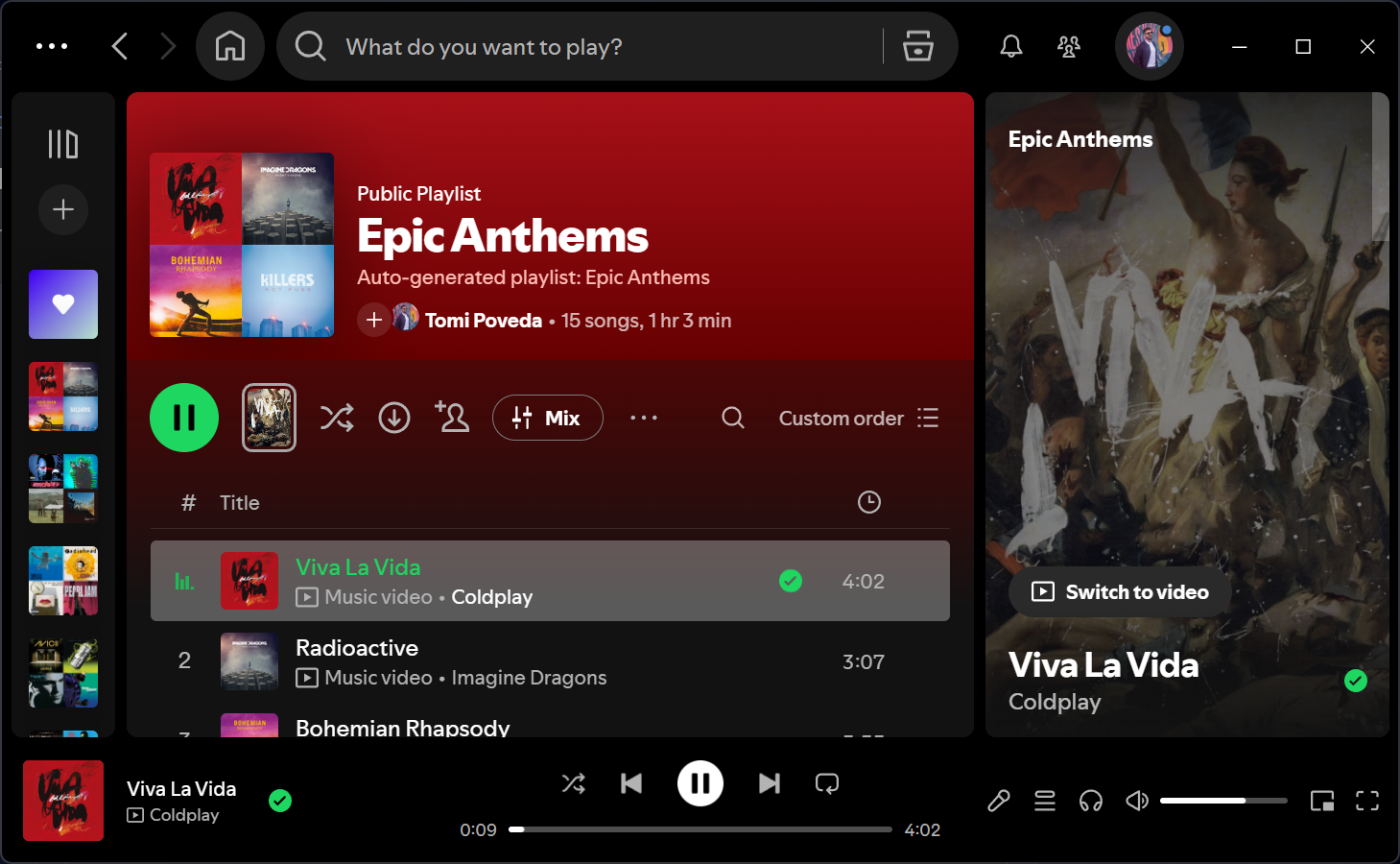 Desktop showing a media player (e.g., Spotify) with a track loaded
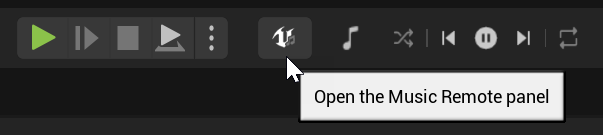
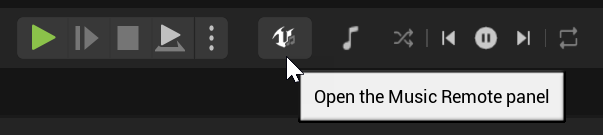 Toolbar with the music icon cursor-highlighted
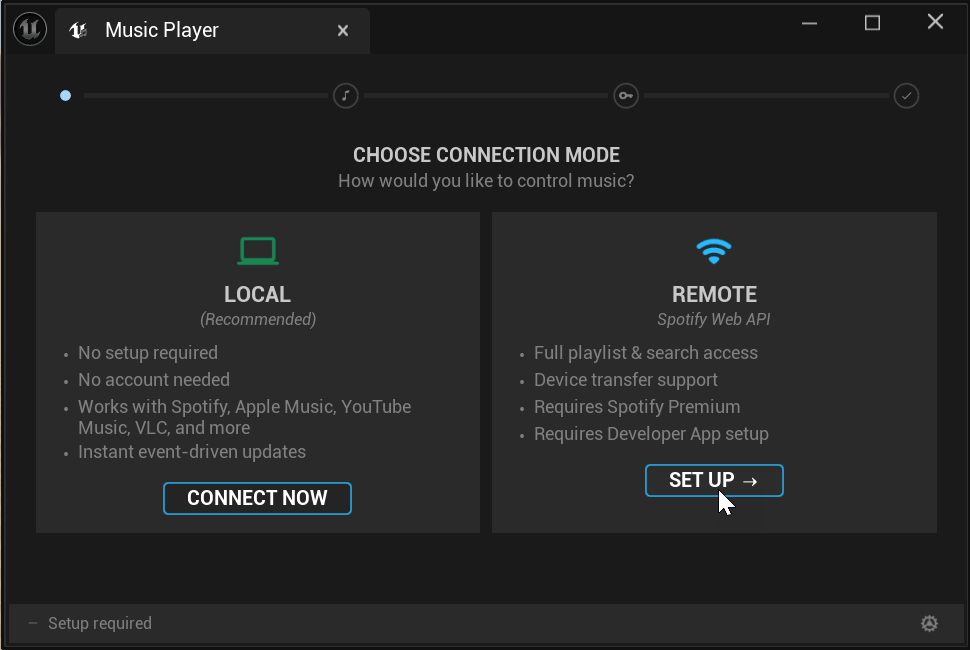
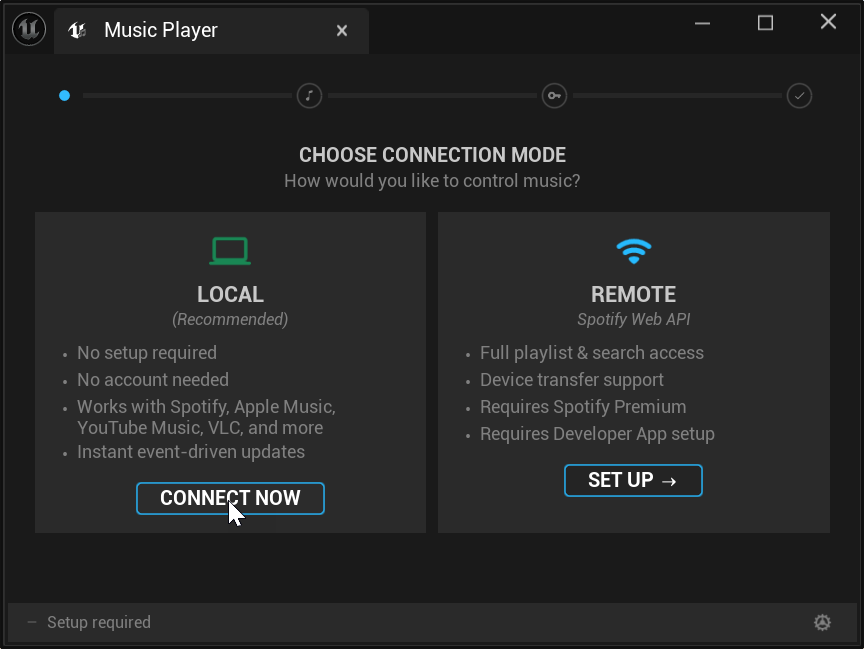 Setup wizard at Step 0 showing "Local" and "Remote" options with the step indicator at the top
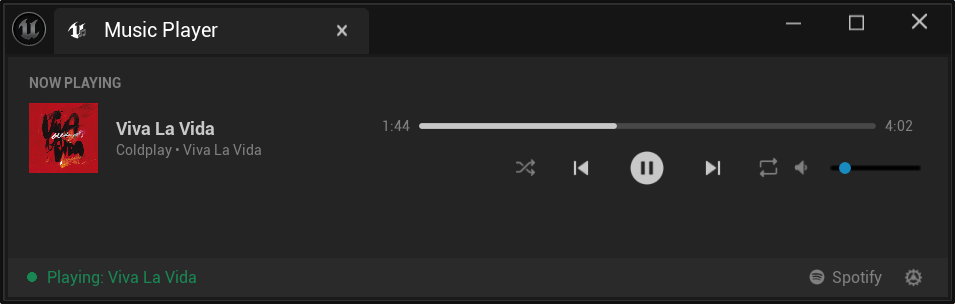 Player view showing album art, track name, artist, transport controls. Status bar shows "Connected (Local)"
Volume slider = adjust the playback volume.
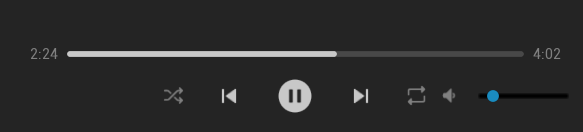 Close-up of the transport controls row (play/pause, next, prev, shuffle, repeat buttons)
Remote Mode Setup (Spotify Web API)
Part A - Create a Spotify Developer App
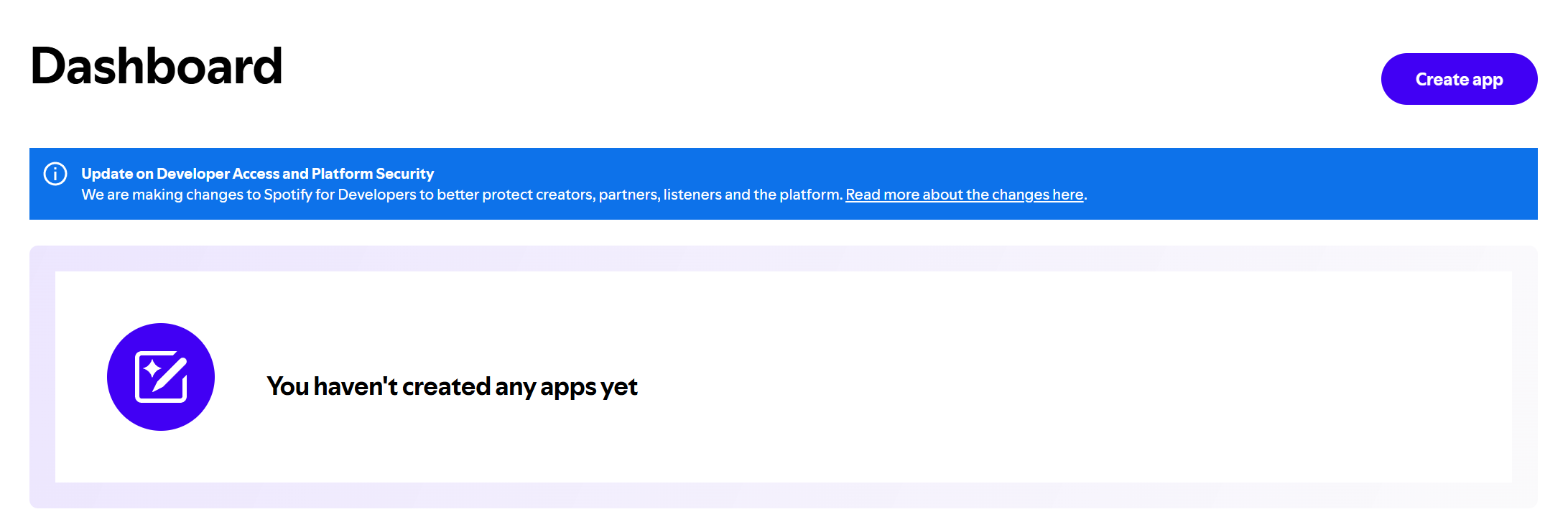 Spotify Developer Dashboard landing page
• Name: e.g. “Music Remote Player”
• Description: d e.g. “Unreal Editor Music Remote Player integration”
• Redirect URI:
http://127.0.0.1:8888/callback • API/SDKs: check Web API
Then click Save.
8888, but it can be changed in Project Settings → Plugins → Music Remote Player. If you use a different port, make sure the Redirect URI here matches the port set in the plugin settings.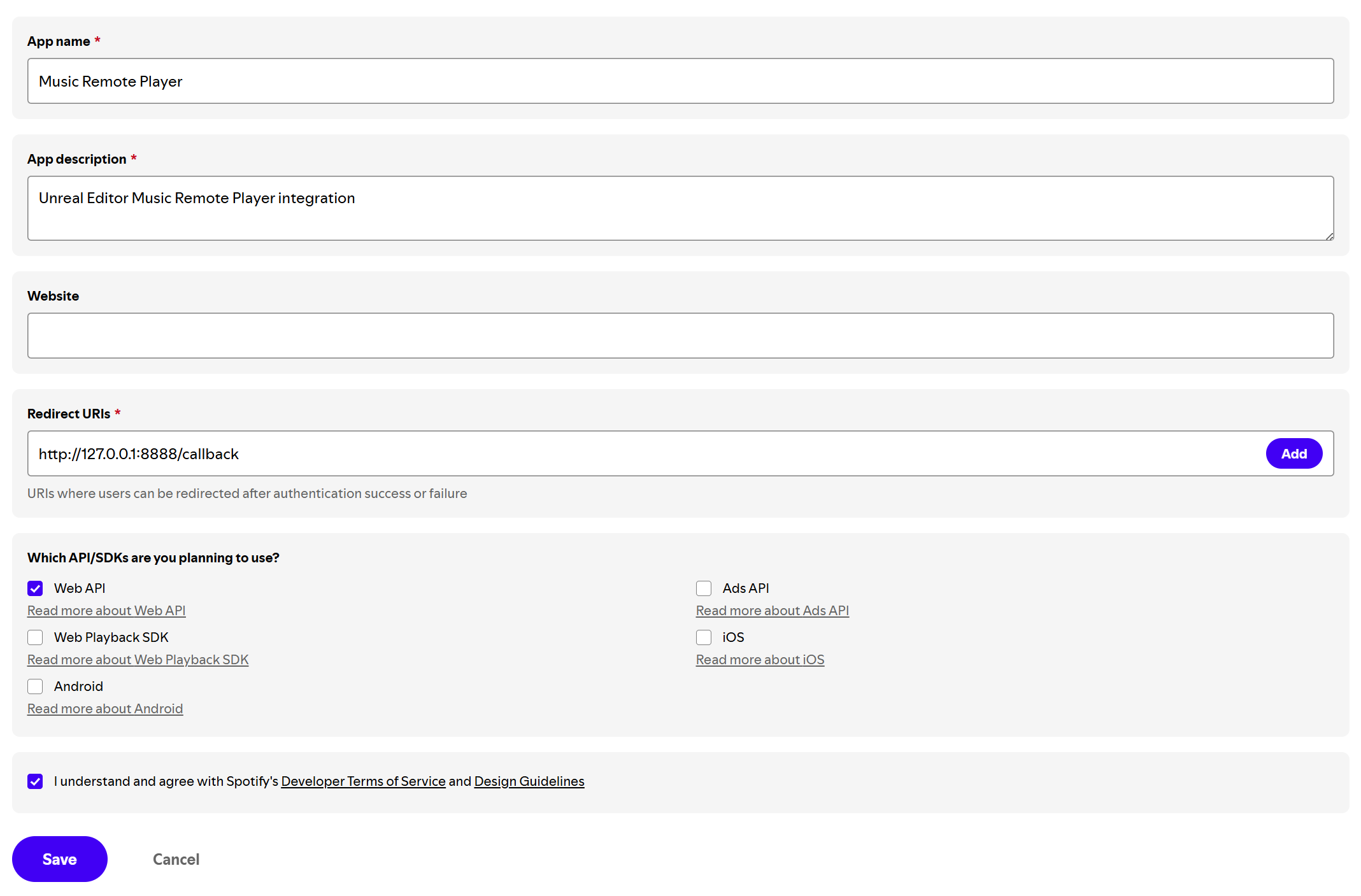 Create App form with fields filled in, Redirect URI highlighted
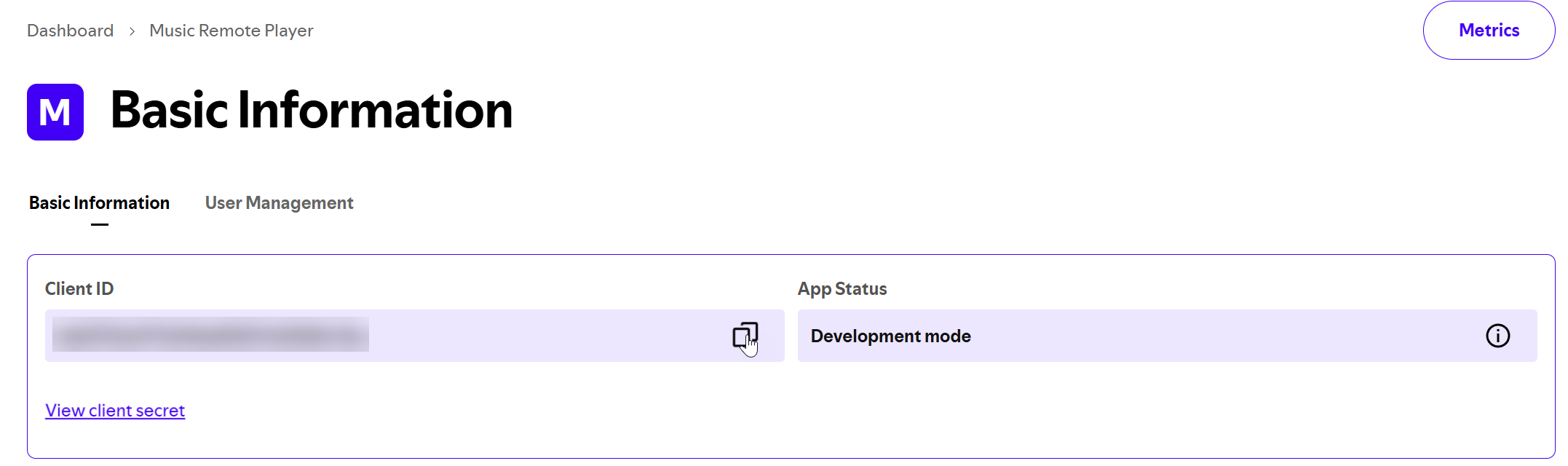 App settings page with the Client ID visible
Part B - Connect in Unreal Editor
 Setup wizard at Step 0 (Mode Selection)
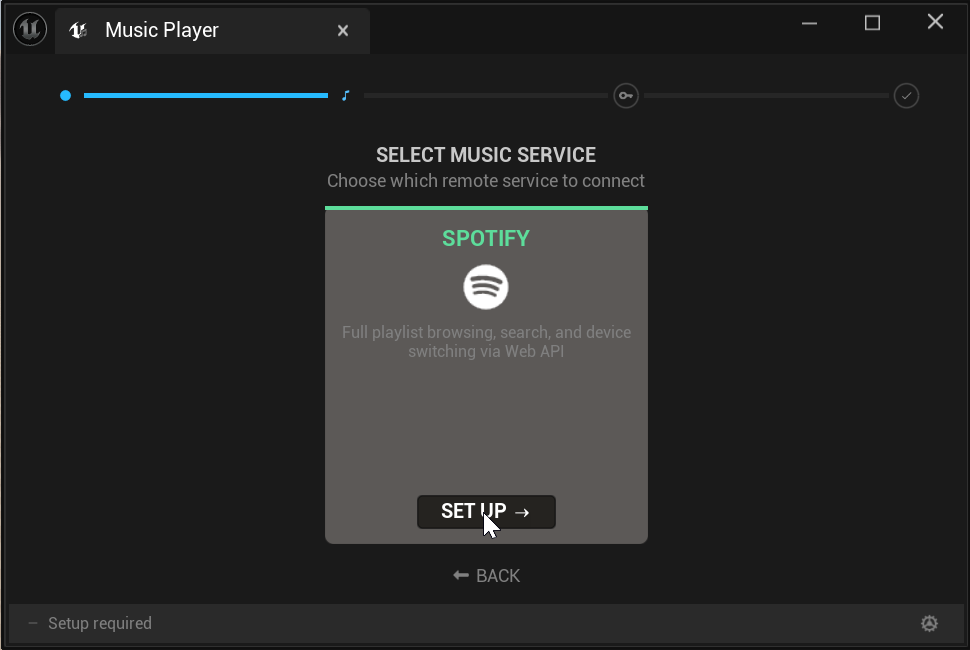
 Wizard transitions to Step 1 (Service Selection). Step indicator shows progress
 Wizard at Step 2 (Credentials). Step indicator updated
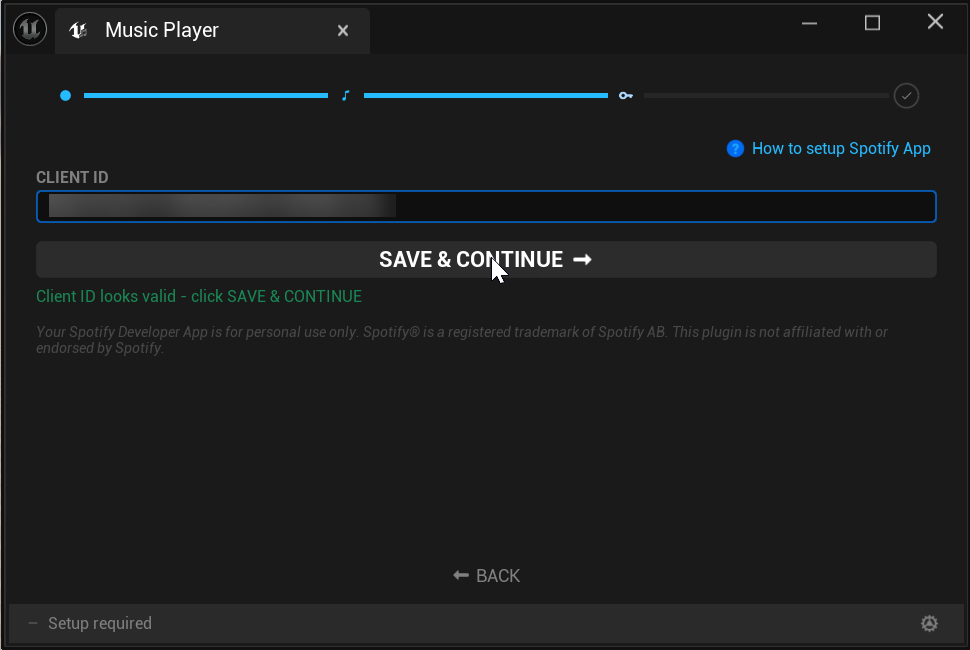 Credentials step with Client ID pasted, Save & Continue button visible
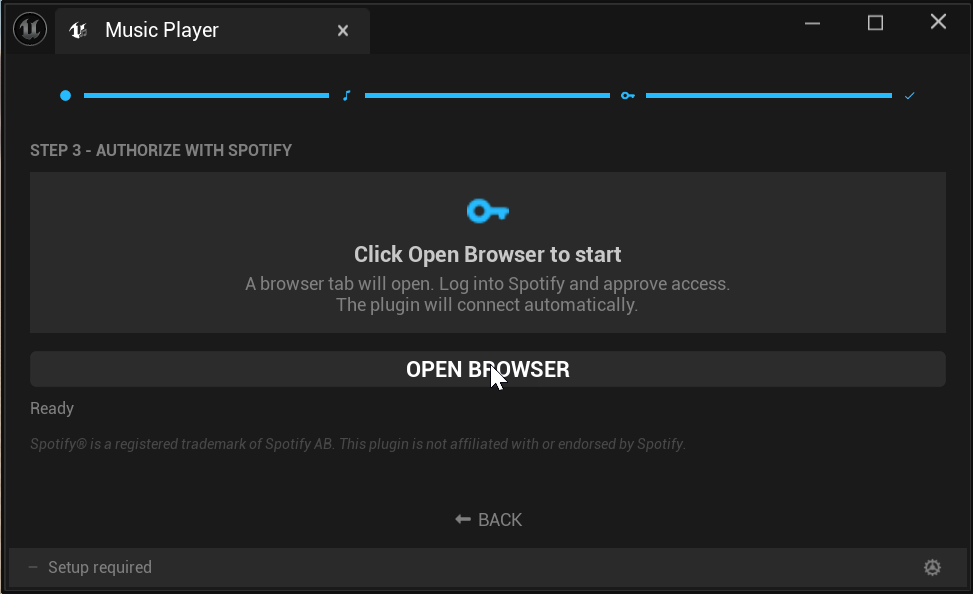 Wizard at Step 3 (Authorization). "Open Browser" button and status text visible
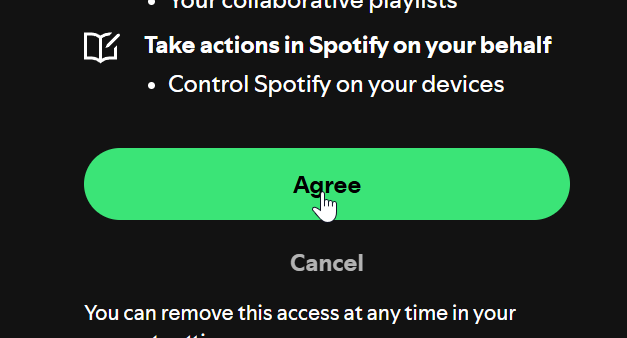 Browser showing the Spotify authorization consent page
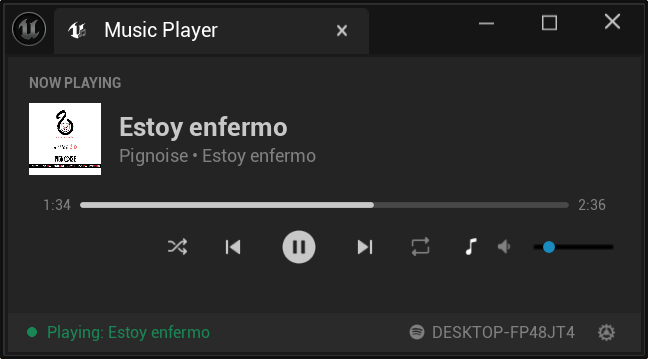 Player view showing album art, track info, status bar showing "Connected (Remote)"
Playlist Browser
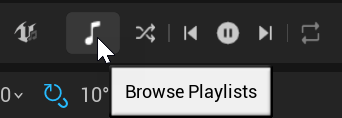 Toolbar widget with the Browse button highlighted
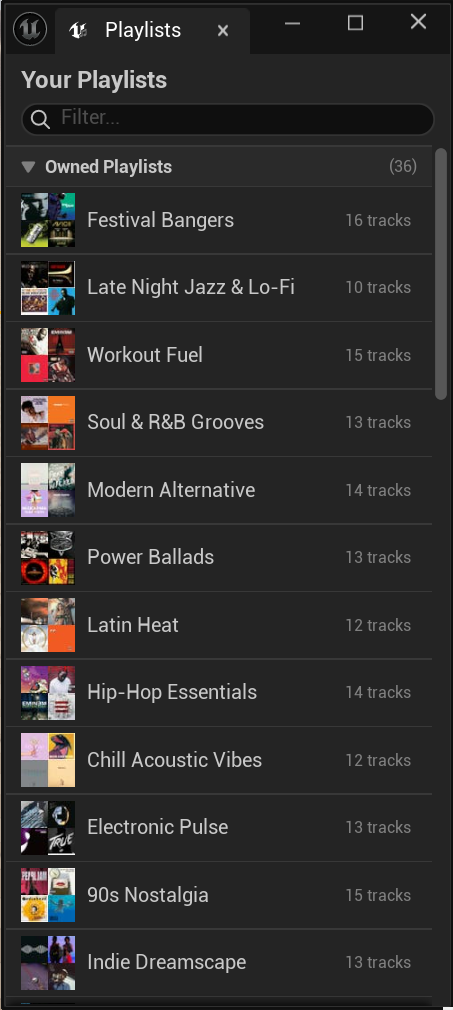 Full playlist browser with Owned section showing playlists with thumbnails, names, track counts
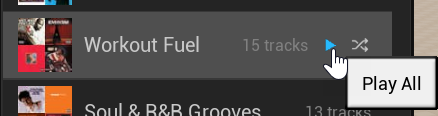 A playlist row with Play All and Shuffle Play buttons visible on hover
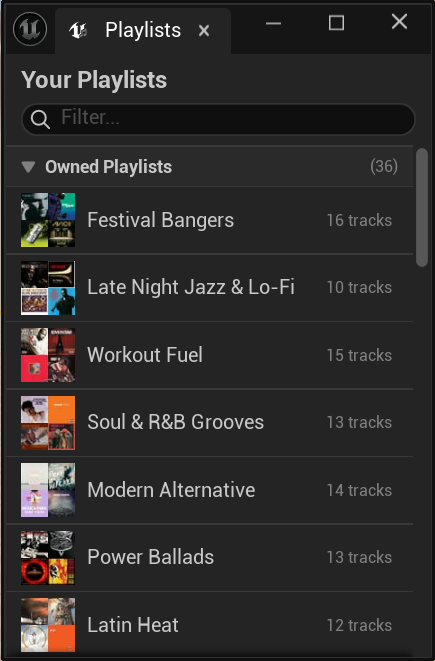 Track list view with album art thumbnails, track names, artists, durations. Back button and playlist header visible
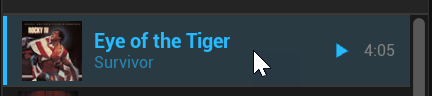 Track list with one track highlighted with a now-playing indicator
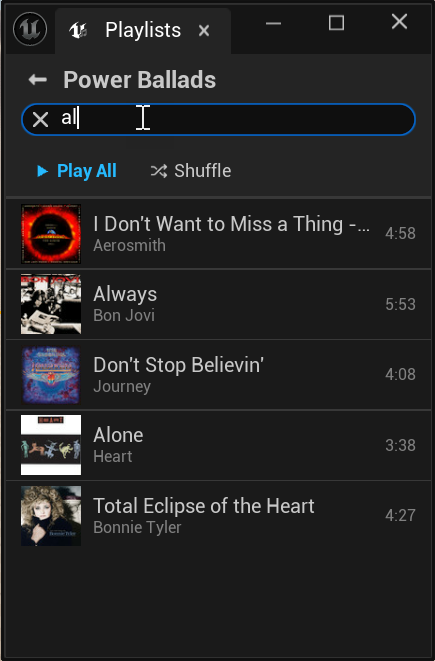 Filter box with text entered, track list filtered to matching results
Layout Modes
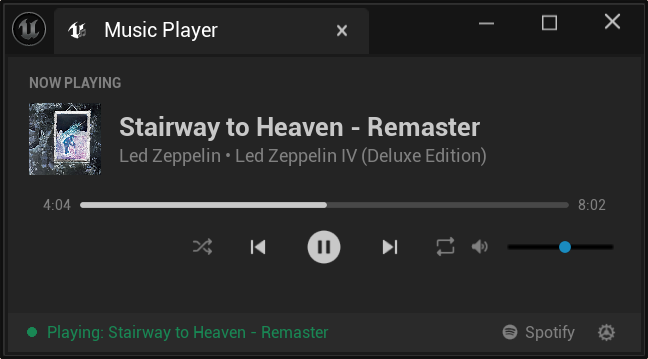 Player in Normal layout
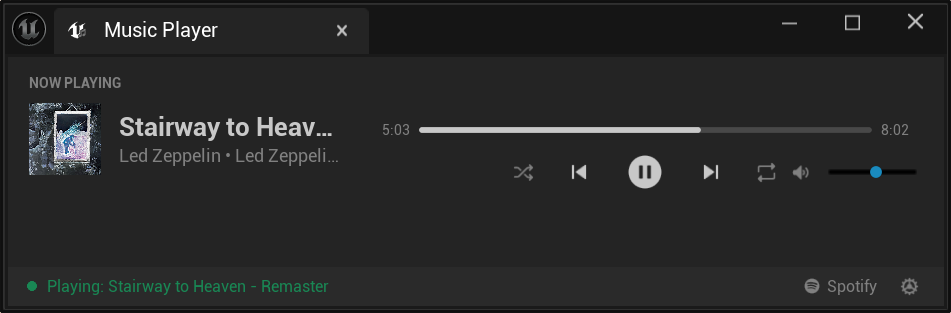 Player in Wide layout
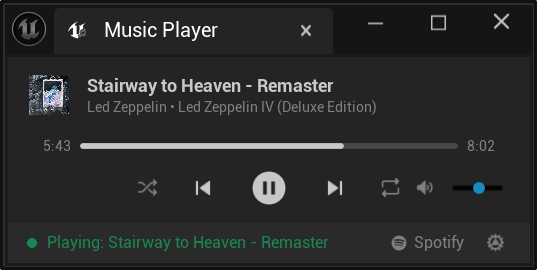 Player in Compact layout
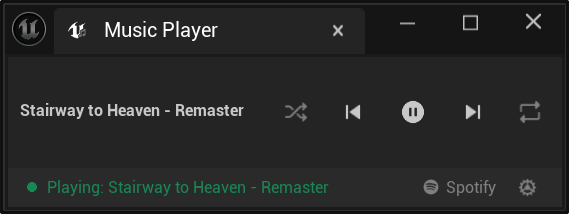 Player in Mini layout
 Player in Condensed layout as a thin strip
Keyboard Shortcuts
 Project Settings tree with "Music Remote Player" selected under Plugins
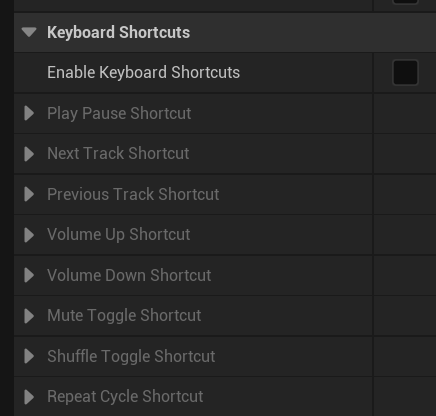 Keyboard Shortcuts section showing the "Enable Keyboard Shortcuts" toggle (off by default)
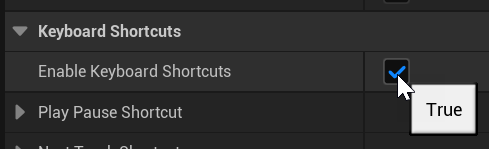 Toggle switched on, all 8 shortcut fields now editable
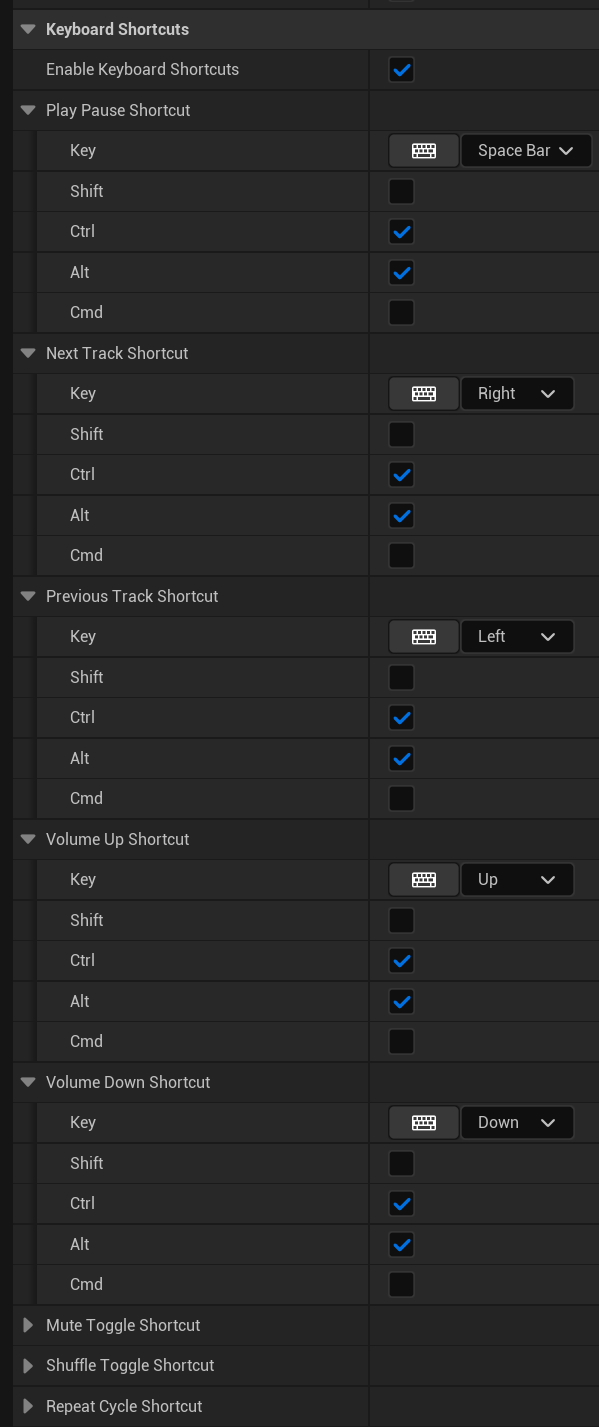 All 8 shortcut fields visible with their default key combinations
Theme Customization
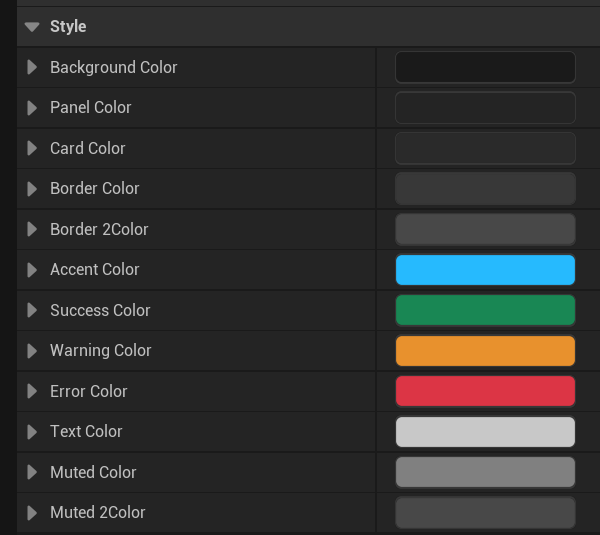 Style section with all color swatches visible (Background, Panel, Card, Border, Accent, Success, Warning, Error, Text, Muted, etc.)
 Player reflecting a custom accent color (e.g. purple or orange instead of default cyan)
Device & Session Switching
Local Mode
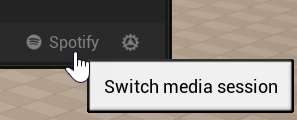 Status bar with the device icon highlighted
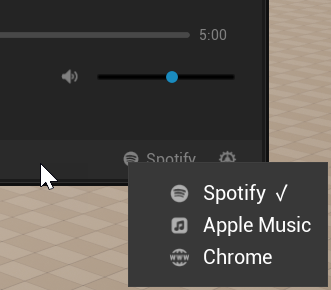 Session selector popup showing 2-3 media apps with their names
Switching Modes
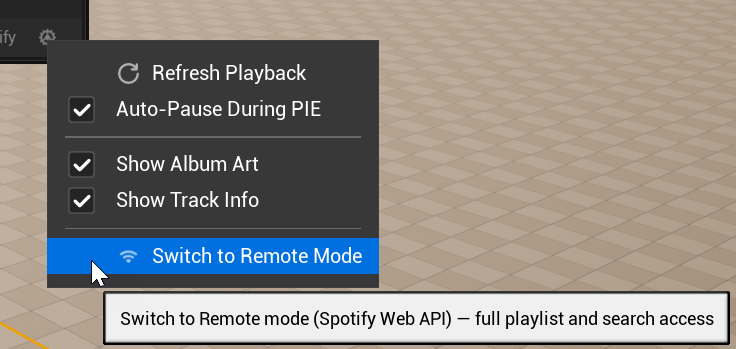 Gear menu with the mode switch option highlighted
Remote Mode
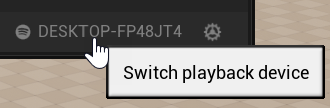 Status bar showing the current Spotify device name
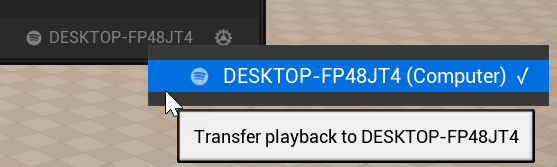 Device selector showing 2-3 Spotify Connect devices with one marked as active
Auto-Pause During Play In Editor
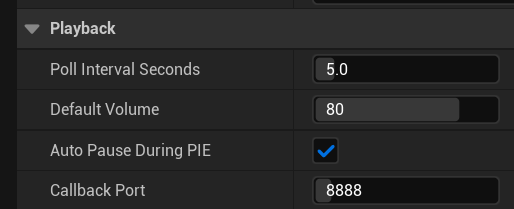 Playback section with the auto-pause checkbox highlighted and checked
 Player with a track actively playing (play icon in paused state = music is playing)
 Editor in PIE mode. The player shows the track paused with a subtle "Paused (PIE)" indicator
Gear Menu & Mode Switching
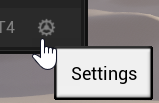 Status bar with the gear icon highlighted
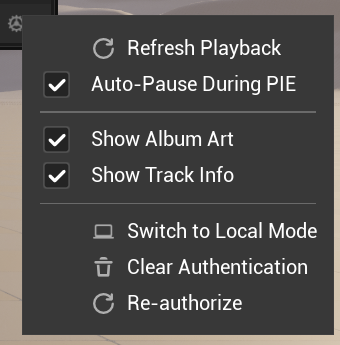 Full gear menu expanded showing all menu items
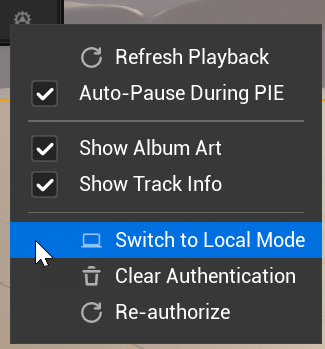 Player transitioning to the other mode (status bar changing from "Local" to "Remote")
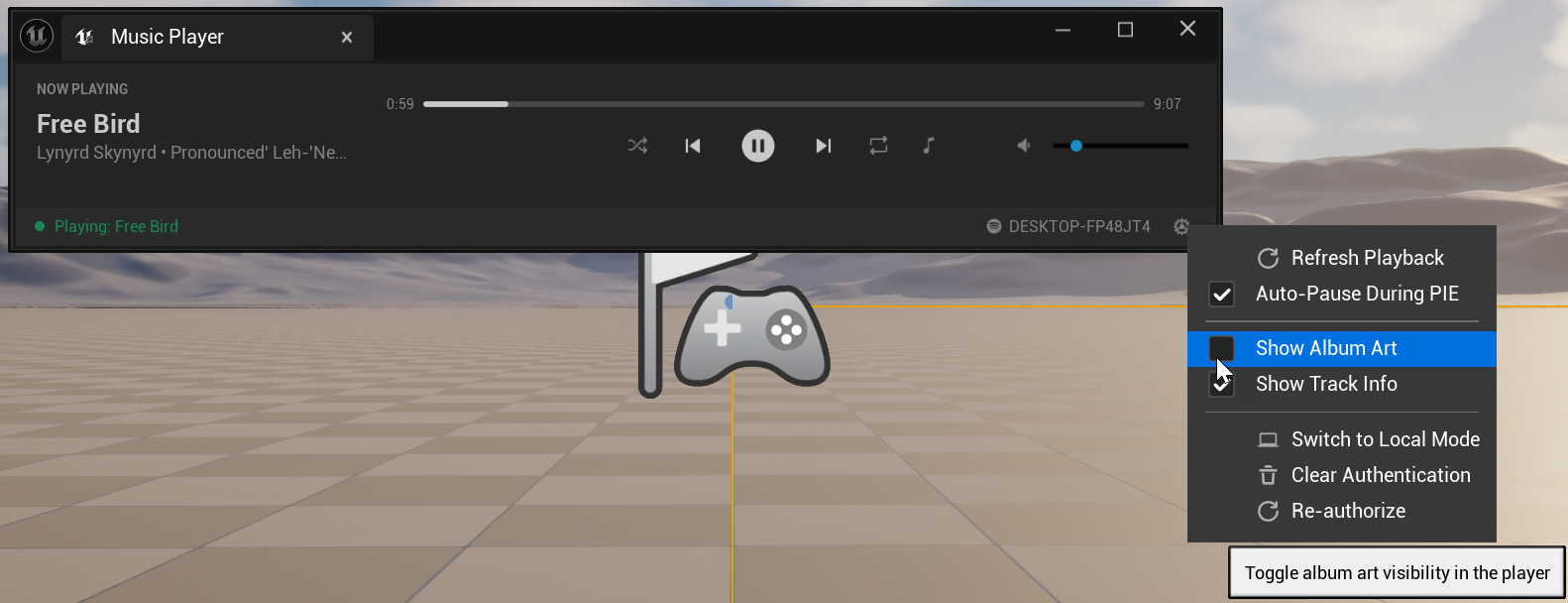 Player before and after hiding album art
Toolbar Transport Controls
 Close-up of the Level Editor toolbar showing all inline transport buttons with labels/annotations
Toast Notifications
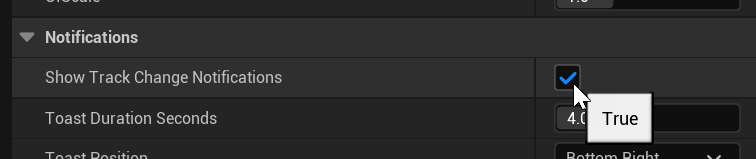 Notifications section in Project Settings with the toast toggle enabled
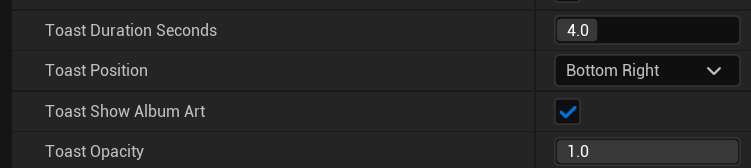 Toast position dropdown and duration slider in Project Settings
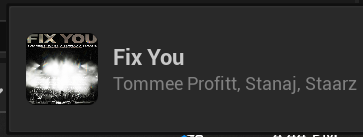 Toast notification showing album art, track name, and artist in the bottom-right corner
Album Art Shapes
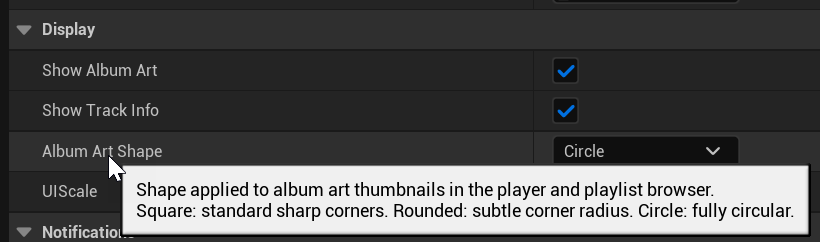 Display section with the Album Art Shape dropdown showing Square, Rounded, and Circle options
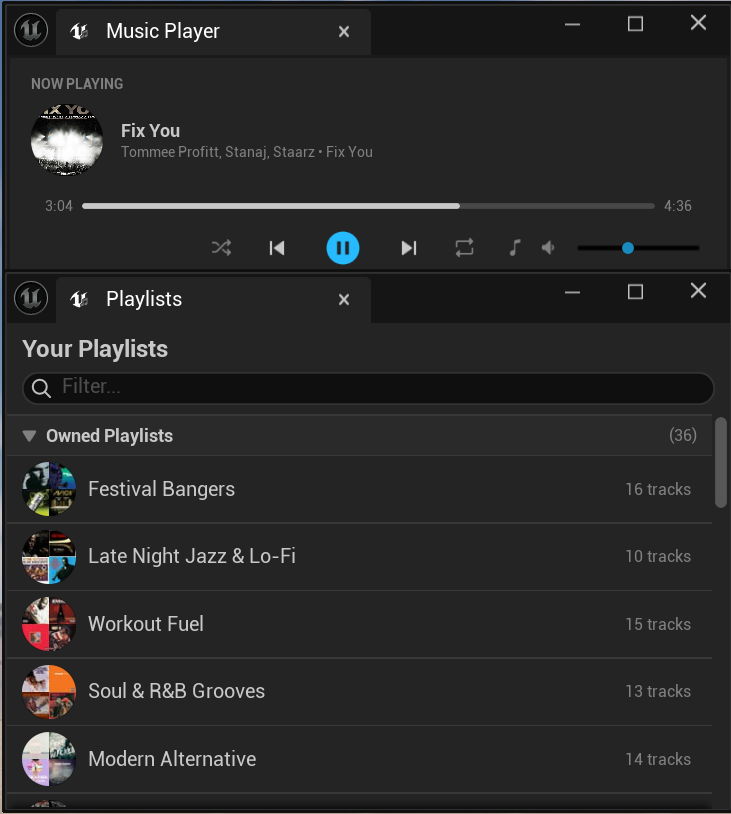 Album art shape applied consistently across the player, playlist browser rows, and toast notifications
Playback Accent Colors
 Style section showing Playing Accent Color and Paused Accent Color next to the main Accent Color
 Color picker open with a green Playing Accent Color selected
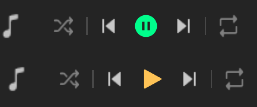 Side by side: player with green playing accent (left) and amber paused accent (right)
Changelog
All notable changes to Music Remote Player, organized by version.
Toast notifications, album art shapes, UI scale, playback accent colors, configurable toolbar
- newConfigurable Toolbar Widget - Choose which buttons (Shuffle, Prev/Next, Repeat) appear in the toolbar via Project Settings. Separators auto-hide. Changes apply live.
- newAlbum Art Shapes - Square, Rounded (15% radius), or Circle (50% radius) thumbnails across all widgets.
- newTrack Change Toast Notifications - Non-intrusive overlay with album art, track name, and artist. Configurable position, duration, opacity, and album art visibility.
- newUI Scale (0.75× – 1.5×) - Global scaling factor for all Music Remote UI elements. Scales fonts, icons, and padding proportionally.
- newPlayback Accent Colors - Different accent colors for playing vs. paused states on the progress bar, play/pause button, and status bar.
- newToast Customization - Toggle album art in toasts and adjust toast opacity (0.5–1.0) for semi-transparent notifications.
- fixLive Color Propagation - All 14 style colors now update instantly when changed in Project Settings. Added Reset Style to Defaults button.
- fixLocal Mode Refresh - Setup Wizard now rescans media sessions instead of reusing a stale cache.
- fixAlbum Art Shape rendering - Switched to RoundedBox brush for proper rounded/circular corners. Live updates and transparent background fix.
- fixReset Style to Defaults - Replaced non-functional CallInEditor with a proper Detail Customization Slate button.
Initial release
- newOAuth 2.0 PKCE setup wizard (Remote) and Windows SMTC local mode
- newFull playback controls: Play/Pause, Next, Previous, Shuffle, Repeat
- newNow Playing display with album art, progress slider, and volume control
- newPlaylist browser with Owned/Followed sections, search, and thumbnails
- newToolbar inline widget and 5 responsive layouts
- newAuto-pause during PIE, keyboard shortcuts, device selector, and full color theme customization
FAQ
The toolbar icon doesn't appear after installing
Local mode shows "No media session detected"
Local mode is controlling the wrong app
Can I use Local mode on Mac or Linux?
"redirect_uri: Not matching configuration" error
http://127.0.0.1:8888/callback. If you changed the callback port in Project Settings, the URI must match (e.g. http://127.0.0.1:YOUR_PORT/callback). No trailing slash, no https, no localhost.Browser shows "This site can't be reached" after approving
127.0.0.1:8888). The plugin's local server captures the token automatically. The browser error just means the server already captured the token and shut down. If the plugin hasn't connected after a few seconds, use the manual fallback field."Access denied (HTTP 403)" when browsing playlists
It says "not playing" but Spotify is open and playing
Playback controls don't respond
Auto-pause isn't working
Can I use this without Spotify Premium?
Port conflict during authorization
Plugin doesn't reconnect after restarting the editor
How do I reset / re-authorize?
Keyboard shortcuts don't work
Can I change the keyboard shortcuts?
Does the plugin affect editor performance?
• Local mode is entirely event-driven via Windows SMTC callbacks - it performs zero polling and reacts instantly to track changes.
• Remote mode polls the Spotify API on a configurable interval (default every 5 seconds, adjustable from 1–30s in plugin settings). Each poll is a single lightweight async HTTP request that runs off the game thread.
• Album art is downloaded asynchronously, cached in memory after the first fetch, and limited to 6 concurrent downloads. Subsequent requests for the same image are served instantly from the cache.
• Progress bar interpolation is a trivial float increment in Tick - no API calls, no allocations.
The plugin runs exclusively in the editor and is never included in packaged builds. Polling is also automatically disabled in headless/unattended mode (e.g.
-NullRHI, commandlets, automated tests).Can I use both Local and Remote modes simultaneously?
Does album art work in Local mode?
Will my Spotify credentials be shared or uploaded?
~/tp_music_remote_config.json).• The plugin uses PKCE authorization (RFC 7636), so no Client Secret is needed.
• Credentials are only ever sent to Spotify's own API endpoints (
accounts.spotify.com and api.spotify.com) - never to any third-party server.• The OAuth callback listener binds exclusively to
127.0.0.1 (localhost).Which media players are supported in Local mode?
This plugin is not affiliated with, endorsed by, or sponsored by Spotify AB. Spotify® is a registered trademark of Spotify AB. To use remote mode and access user playlists, each user must create their own Spotify Developer App. The plugin does not stream, download, or store audio content — it acts solely as a remote control. Use of the Spotify Web API is subject to the Spotify Developer Terms of Service.
The developer will endeavor to keep this plugin up to date, however third-party APIs and services may change at any time without notice and continued compatibility cannot be guaranteed.